
Part 1 · Overview and getting started
1. What the platform does
WhoAnyone
The platform runs the ECOWAS Brown Card scheme from end to end. Insurers issue Brown Card certificates digitally, each one valid in the 11 countries of the scheme and numbered by the platform. Police, customs and the public check a certificate in seconds from its QR code, its number or the vehicle’s plate, online or offline. When a visiting motorist causes an accident, the national bureaux settle the victim’s claim and recover the money between them under the Harmonised Convention.
Behind those three activities sit the stock of certificate credits that insurers buy from their bureau, the bureaux’ own purchases from the Secretariat, and the Secretariat’s oversight of the whole scheme. Every change is signed and recorded in a tamper-evident ledger.
- Part 1 explains the organisations and roles, draws the three main flows with every approval point, and lists the approvals in one table.
- Part 2 walks through each task on screen, in the order the flows run.
2. Organisations and roles
Each person belongs to one organisation and holds one or more roles. The role decides which menu items a person sees and which buttons they can use; a bureau sees its own country, an insurer its own certificates and claims.
The Secretariat (the Permanent General Secretariat of the Brown Card) runs the scheme: it registers the national bureaux, sets each country’s scheme settings, fees and rates, sells certificate credits to the bureaux and reads every country’s figures.
- Secretariat administrator
- Registers bureaux and invites Secretariat staff; sets scheme settings, tier fees and unit-of-account rates; confirms bureaux’ payments and releases their credits; reopens annual reports; suspends or reinstates certificates; reviews risk signals; validates and closes support tickets. Reads everything.
- Secretariat supervisor
- Reads everything the Secretariat sees — certificates, claims, orders, reports and the audit trail — and checks the integrity of the record.
- Secretariat finance
- Confirms bureaux’ payments and releases their credits, imports bank statements, keeps the tier fees and year-end rates, reopens annual reports and reads the financial reports.
A national bureau represents the scheme in its country. It buys credits from the Secretariat, sells them to the country’s insurers, registers insurers and authorities, and handles the cross-border claims of accidents in its country.
- Bureau administrator
- Registers the country’s insurers and authorities and sets their standing; invites bureau staff; orders credits and releases insurers’ credits; sets the bureau fee and reorder thresholds; suspends or reinstates certificates; registers paper certificates; submits the annual report; creates API keys; reads claims, reports and risk signals.
- Claims officer
- Handles the bureau’s cross-border claims: opens and assesses them, makes offers, records payments, asks for approvals, sends notices and reimbursement claims, answers the other bureaux and records arbitration.
- Stock officer
- Orders credits from the Secretariat, confirms insurers’ payments and releases their credits, keeps reorder thresholds and registers paper certificates.
- Bureau finance
- Declares the bureau’s payments, confirms insurers’ payments, reads claims and settlements, and submits the annual report.
- Investigator
- Reads the flagged claims, their photos and timeline in the bureau’s country, and reviews risk signals: marks them reviewed, dismissed or confirmed with a note.
An insurer issues the certificates its policyholders carry and pays its bureau for the credits they use.
- Insurer administrator
- Invites the insurer’s staff; orders and pays for credits; issues, renews, cancels and duplicates certificates; uploads files; answers policyholder requests; creates API keys; reads the claims on its certificates.
- Underwriter
- Issues, renews, cancels and duplicates certificates, uploads files and answers policyholder requests.
- Insurer claims
- Reads the claims on the insurer’s certificates and adds documents to them.
Authorities — police and customs — check certificates at the roadside and at the border. The platform operator runs the helpdesk. Partner organisations read the settlement records shared with them.
- Verifier
- Checks certificates with the verifier, sees the holder’s details and reads the organisation’s scan history.
- Platform operator
- Triages and resolves support tickets, keeps each country’s scheme settings, and reads system status, the audit trail and the integrity record.
- Partner finance
- Reads settlements, reports and the integrity record.
- Policyholder
- Opens their certificates, asks their insurer for a new policy or a renewal, reports accidents and follows their claims.
- The public checks a certificate, reports an accident and follows a claim with its reference, straight from the public pages.
- Integrators — insurers’ and bureaux’ own systems — send certificates and read results through the API with a key their administrator creates.
3. From credits to a certificate on the road
A certificate starts as a credit: one credit issues one certificate. Credits flow down the scheme — Secretariat to bureau, bureau to insurer — and each sale is an order that the seller approves once the money has arrived. Certificates then flow out to policyholders and are checked on the road.
- Start or end
- Step
- Approval: someone else decides
- Happens in some cases
Read this flow as a list
- Step 1: National bureau: Orders credits from the Secretariat and paysOnline where offered, or a bank transfer declared with its proofSteps: 10. Ordering credits and paying
- Step 2: ApprovalApproved by Secretariat: Confirms the payment and releases the creditsAdministrator or finance. Paystack payments are released automatically.Steps: 11. Confirming a payment and releasing credits
- Step 3: Insurer: Orders credits from its bureauSecretariat fee plus bureau fee, fixed on submissionSteps: 10. Ordering credits and paying
- Step 4: Insurer: Pays online with Paystack or by bank transferA transfer is declared with its reference and proofSteps: 10. Ordering credits and paying
- Step 5: ApprovalApproved by National bureau: Confirms the payment and releases the creditsTransfer: confirm, then release. Paystack: released automatically.Steps: 11. Confirming a payment and releasing credits
- Step 6: Insurer: Issues certificates by form, file or APIOne credit each; valid in the 11 countriesSteps: 13. Issuing a certificate
- Step 7: Policyholder: Receives the certificate link by text messageCard, PDF and an account for requests and claimsSteps: 18. For policyholders: your certificate and your claims
- Step 8: Insurer · bureau: Renews, replaces, suspends or cancelsReplacing, suspending and cancelling need a reasonSteps: 16. Renewing, replacing, suspending and cancelling
- Step 9: Police, customs, the public: Check the certificateQR code, number or plate, verifier, USSDSteps: 19. Checking a certificate
- The seller approves each sale in two clicks — Confirm payment, then Release credits — after comparing the payment with its bank statement. A payment made online with Paystack is confirmed with Paystack and released at once.
- An order carries its price from the moment it is submitted.
- In countries whose certificates are issued from the national motor insurance database, the platform receives each certificate from that database.
4. A cross-border claim, end to end
A cross-border claim involves two bureaux. The handling bureau is the bureau of the country where the accident happened: it deals with the victim, settles the claim and pays. The issuing bureau is the bureau of the country that issued the certificate: it approves the settlement and reimburses the handling bureau. The insurer that issued the certificate follows the claim and adds documents.
- Start or end
- Step
- Approval: someone else decides
- Happens in some cases
Read this flow as a list
- Step 1: Victim or witness: Reports the accidentOnline form, USSD, or to the bureauSteps: 20. Reporting an accident and opening a claim
- Step 2: Handling bureau: Opens the claim and attaches the certificateBureau of the country of the accidentSteps: 20. Reporting an accident and opening a claim
- Step 3: Handling bureau: Records the facts, photos and assessmentAmounts converted to units of account (UA)Steps: 21. Handling a claim: facts, assessment, offer and payment
- Step 4: Handling bureau: Makes the offer and records the victim’s answerInjury or death: offer within the Convention’s deadlineSteps: 21. Handling a claim: facts, assessment, offer and payment
- Step 5: ApprovalWhen neededApproved by Issuing bureau: Approves the settlement before paymentAbove 3,000 UA. Answer within 3 months; silence approves.Steps: 22. Settlement approval above 3,000 UA
- Step 6: Handling bureau: Pays the victim and records the paymentUp to 3,000 UA on its own authoritySteps: 21. Handling a claim: facts, assessment, offer and payment
- Step 7: Handling bureau: Sends the notice and claims reimbursementTo the bureau that issued the certificateSteps: 23. Notice, reimbursement claim and the answer
- Step 8: ApprovalApproved by Issuing bureau: Accepts or rejects the reimbursement claimUp to 3,000 UA: within 1 month of the notice; silence accepts.Steps: 23. Notice, reimbursement claim and the answer
- Step 9: Issuing bureau: Pays; the handling bureau confirms receiptDue 1 month after the notice, then 3% a monthSteps: 24. Reimbursement and closing
- Step 10: When neededBoth bureaux: Take a rejected claim to arbitrationThree arbitrators; the decision is recordedSteps: 25. Arbitration
- Step 11: Handling bureau: Closes the claimSteps: 24. Reimbursement and closing
Amounts are compared in units of account (UA), at the Secretariat’s rate for the currency on the day. The amount decides the route:
- Up to and including 3,000 UA, the handling bureau settles on its own authority. After paying the victim it sends the notice and the reimbursement claim together. The issuing bureau may reject within one calendar month of the notice; when it does not answer in time, the settlement is approved and the reimbursement is due.
- Above 3,000 UA, the handling bureau asks the issuing bureau to approve the settlement before paying. The issuing bureau answers within three calendar months; when it does not answer in time, the settlement is approved by silence. Once the victim is paid, that approval covers the reimbursement claim.
- The reimbursement is due one calendar month after the notice. From the next day, interest runs at 3% a month until the money arrives.
- A rejected claim can go to arbitration before three arbitrators; their decision is recorded on the claim.
5. The Secretariat’s cycle
The Secretariat sets up each country, keeps the fees and rates the other flows use, follows the scheme through the year and collects each bureau’s annual report.
- Start or end
- Step
- Approval: someone else decides
- Happens in some cases
Read this flow as a list
- Step 1: Secretariat: Registers each country’s bureau and its scheme settingsStatus, issuing method, paper period, USSD codeSteps: 26. Bureaux, insurers, authorities and scheme settings
- Step 2: National bureau: Registers its insurers and authoritiesInvites their administrators and sets their standingSteps: 26. Bureaux, insurers, authorities and scheme settings
- Step 3: Secretariat: Sets tier fees, UA rates and year-end ratesEach from the date it appliesSteps: 27. Tier fees, unit-of-account rates and year-end rates
- Step 4: ApprovalApproved by Secretariat: Approves each country’s tier for the next yearProposed from the year’s issuance; applies from 1 JanuarySteps: 27. Tier fees, unit-of-account rates and year-end rates
- Step 5: Secretariat: Follows the scheme through the yearOverview, risk signals, integrity, auditSteps: 30. Oversight: overview, risk signals, integrity and audit
- Step 6: National bureau: Fills in its annual reportSections II to VI are counted by the platformSteps: 28. The annual bureau report: submit and reopen
- Step 7: National bureau: Submits the report to the SecretariatFrom 1 January; the figures freezeSteps: 28. The annual bureau report: submit and reopen
- Step 8: ApprovalApproved by Secretariat: Reads each report and may reopen itA reopened report is corrected and submitted againSteps: 28. The annual bureau report: submit and reopen
- Step 9: Secretariat: Reads the summary and settlements, and presents the yearExcel downloads for each reportSteps: 29. Summary, settlements and decision reports
Each year the platform proposes each country’s tier for the next year from its issuance; the Secretariat approves it, and it applies from 1 January. A submitted annual report is frozen as it stands. The Secretariat reads it and can reopen it with a reason; the bureau then corrects it and submits it again.
6. Approvals at a glance
Every point where one organisation waits for another’s decision. Deadlines in calendar months run to the same date of the following month.
| Approval | Asked by | Decided by | Deadline | Silence means | Where |
|---|---|---|---|---|---|
| Release of credits to a bureau | Bureau, after paying and declaring the payment | Secretariat administrator or Secretariat finance: Confirm payment, then Release credits | — | The order waits in its current status | Stock orders |
| Release of credits to an insurer | Insurer, after paying | Bureau administrator or stock officer (bureau finance can confirm the payment). A Paystack payment is released automatically. | — | The order waits in its current status | Stock orders |
| Settlement above 3,000 UA | Handling bureau, before paying the victim: Ask for approval | Issuing bureau claims officer: Approve or Reject with a reason | 3 calendar months from the request | Approved by silence | Claim › Notice to the issuing bureau |
| Reimbursement claim up to 3,000 UA | Handling bureau, after paying: Notify and claim reimbursement | Issuing bureau claims officer: Accept or Reject with a reason | 1 calendar month from the notice | The settlement is approved and the reimbursement is due | Claim › Reimbursement demand |
| Receipt of the reimbursement | Issuing bureau: Declare the payment | Handling bureau claims officer: Confirm receipt | Due 1 calendar month after the notice | Interest of 3% a month runs from the day after the due date | Claim › Reimbursement demand |
| Annual bureau report | Bureau administrator or bureau finance: Submit | Secretariat administrator or finance reads it and may reopen it with a reason | Submitted from 1 January of the following year | The report stays as submitted | Reports › Annual reports |
| A country’s tier for the next year | The platform proposes it from the year’s issuance | Secretariat administrator or finance: Approve | Applies from 1 January | The published tier stays in force | Pricing |
| Closing a support ticket | Platform operator: Mark resolved | Secretariat administrator: Validate and close | Set by the ticket’s priority | The ticket stays resolved; the requester can reopen it | Support |
Part 2 · Step by step
7. Signing in and two-factor sign-in
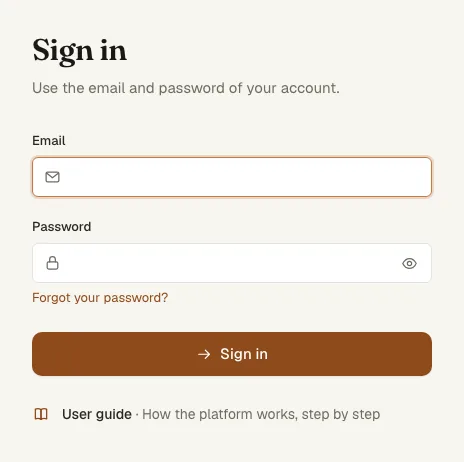
Accounts are created by invitation: your organisation’s administrator invites you, and the email’s Choose your password button opens a page where you set your password. The link works once, for 24 hours. Staff accounts sign in with a password and a six-digit code from an authenticator app.
- Open the invitation email and press Choose your password. Enter a password of at least 12 characters and press Set password.
- On the sign-in page, enter your Email and Password and press Sign in.
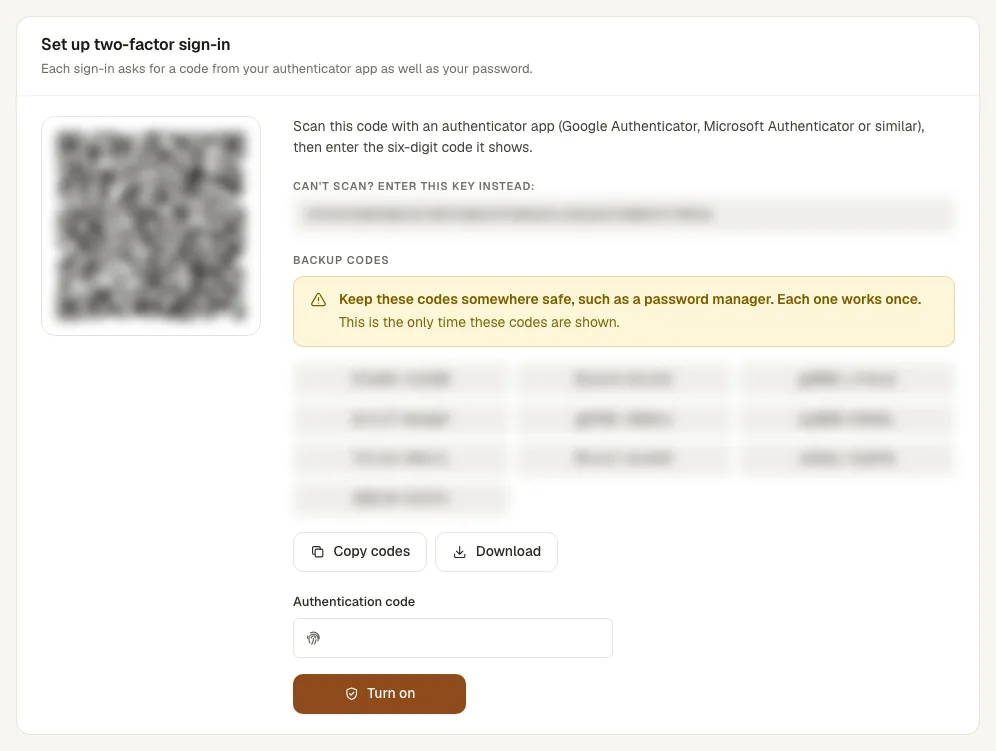
- The first time, the platform asks you to set up two-factor sign-in. Confirm your password and press Continue.
- Scan the QR code with an authenticator app (Google Authenticator, Microsoft Authenticator or similar), or type the key shown under it. Copy or download the backup codes the page shows.
- Enter the six-digit code from the app and press Turn on. Your workspace opens.
- From then on, after your password the platform asks for the Authentication code. Tick Trust this device for 30 days on a device you use every day.
- Forgot your password? on the sign-in page emails you a link to choose a new one. Setting a new password signs you out everywhere.
- Account › Security changes your password, gives you new backup codes and lists the devices signed in to your account, each with Sign out.
- The language menu in the top bar switches between English, French and Portuguese; signed in, your emails and text messages follow the same choice.
8. Finding your way around
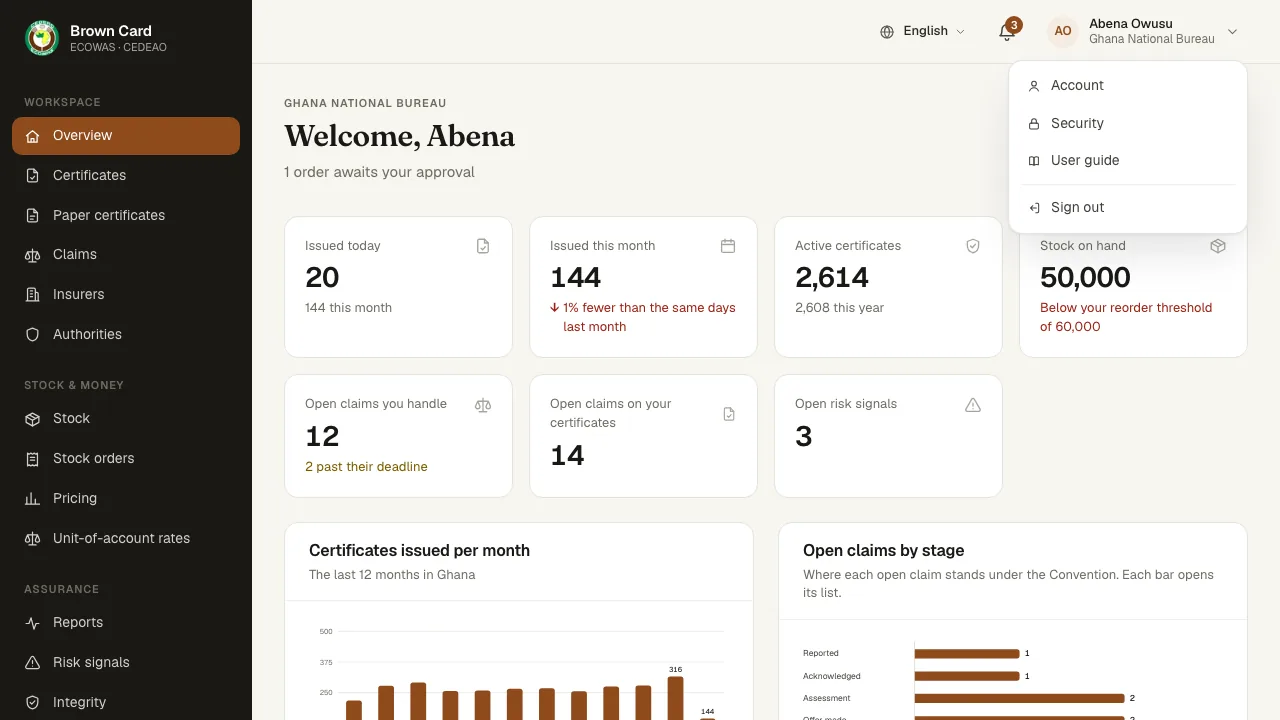
After signing in, staff land on their Overview, policyholders on My certificates and police and customs officers on the verifier.
- The menu on the left groups your screens under Workspace, Stock & money, Assurance and Administration. It lists the screens your role uses.
- The top bar holds the language menu, the notifications bell (the count shows unread messages) and the account menu with Account, Security, this User guide and Sign out.
- Lists take a search by name, number, reference or plate, filters and pages. View details or the row’s menu opens a record and its actions.
- Pages under a list have a link back to it above the title.
9. Inviting your team
WhoSecretariat administrator · Bureau administrator · Insurer administrator
Each administrator invites the people of their own organisation. A bureau administrator invites the first administrator of each insurer and authority it registers, from that organisation’s page.
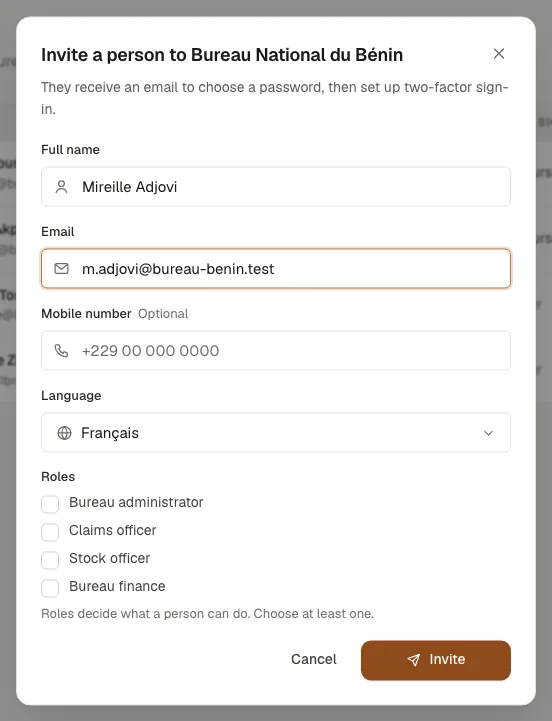
- Open Team and press Invite a person.
- Enter the Full name, Email, an optional Mobile number and the Language of the person’s emails.
- Tick one or more Roles and press Invite. The person receives an email to choose a password.
- The table shows each person’s status: Invitation pending, Setting up (password chosen, two-factor sign-in to set up), Active or Disabled.
- Use the row’s menu to Resend invitation, Change roles or Disable an account. Disabling signs the person out at once.
10. Ordering credits and paying
WhoBureau administrator · Stock officer · Bureau finance · Insurer administrator
A bureau orders credits from the Secretariat; an insurer orders from its own bureau. The order is priced when you submit it and keeps that price.
- Open Stock orders and press Order credits, or use the button on Stock.
- Enter the Number of credits. The card shows the seller, your current balance and reorder threshold, the price per credit and the Total.
- Press Submit order. The order receives a number such as ORD-GH-2026-000033 and opens on its own page.
- Pay the total. Where the order offers online payment, Pay with Paystack opens Paystack’s page (card, mobile money or bank transfer) and brings you back to the order when you are done.
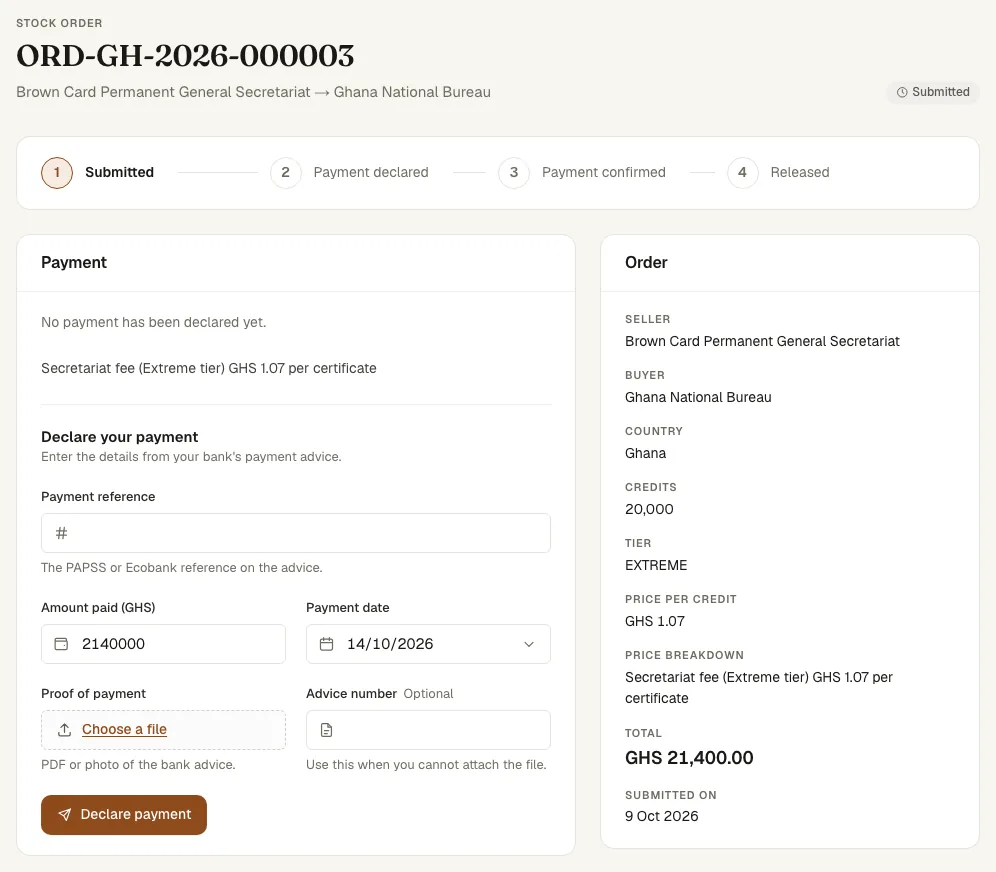
- For a bank transfer, fill in Declare your payment from your bank’s advice: Payment reference, Amount paid, Payment date and the Proof of payment (PDF or photo) or the Advice number. Press Declare payment.
- The order shows Waiting for … to confirm the payment until the seller confirms it and releases the credits. You receive a notification when the credits reach your balance.
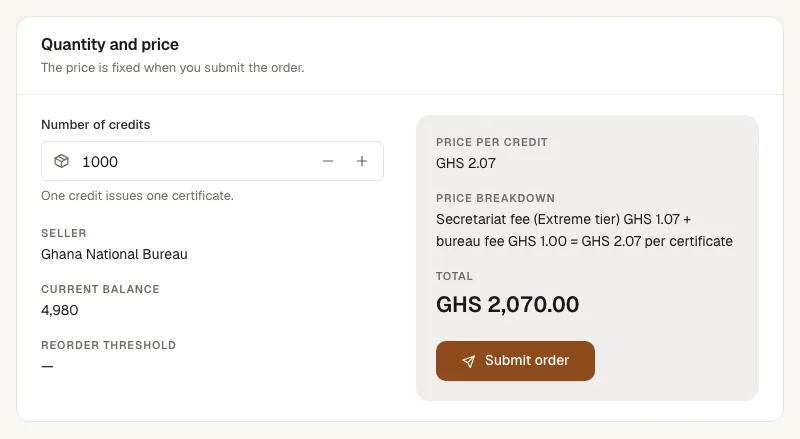
- The price of a bureau’s credits is the Secretariat fee for the country’s tier, converted to the bureau’s currency at the unit-of-account rates in force. An insurer pays that fee plus the bureau fee; the order shows the conversion and the breakdown.
- When the amount you declare differs from the total, the form says by how much and asks you to tick that it is the amount on the bank advice.
- Each payment reference is declared once.
- A submitted order can be cancelled with a reason, by either side, until a payment is declared.
11. Confirming a payment and releasing credits
WhoSecretariat administrator · Secretariat finance · Bureau administrator · Stock officer · Bureau finance
The seller approves each sale: the Secretariat for a bureau’s order (administrator or finance), the bureau for an insurer’s order (administrator or stock officer; bureau finance confirms payments). Compare the payment with your bank statement first.
- Open Stock orders. Orders in Payment declared wait for you; the notification bell links to each new declaration.
- Open the order and compare the reference, amount and date with your bank statement.
- In Confirm the payment, enter the Amount received and press Confirm payment. A different amount moves the order to Payment exception with the difference shown.
- In Release the credits, press Release credits. The credits move to the buyer’s balance and the buyer is notified.
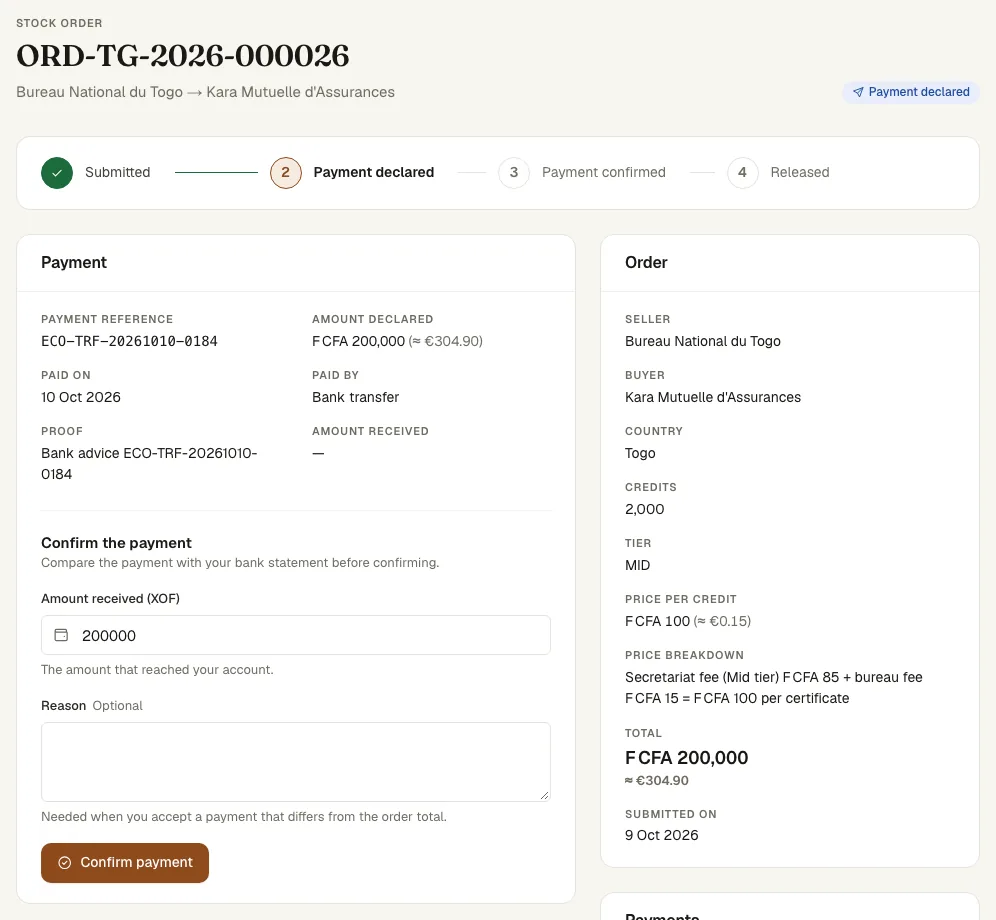
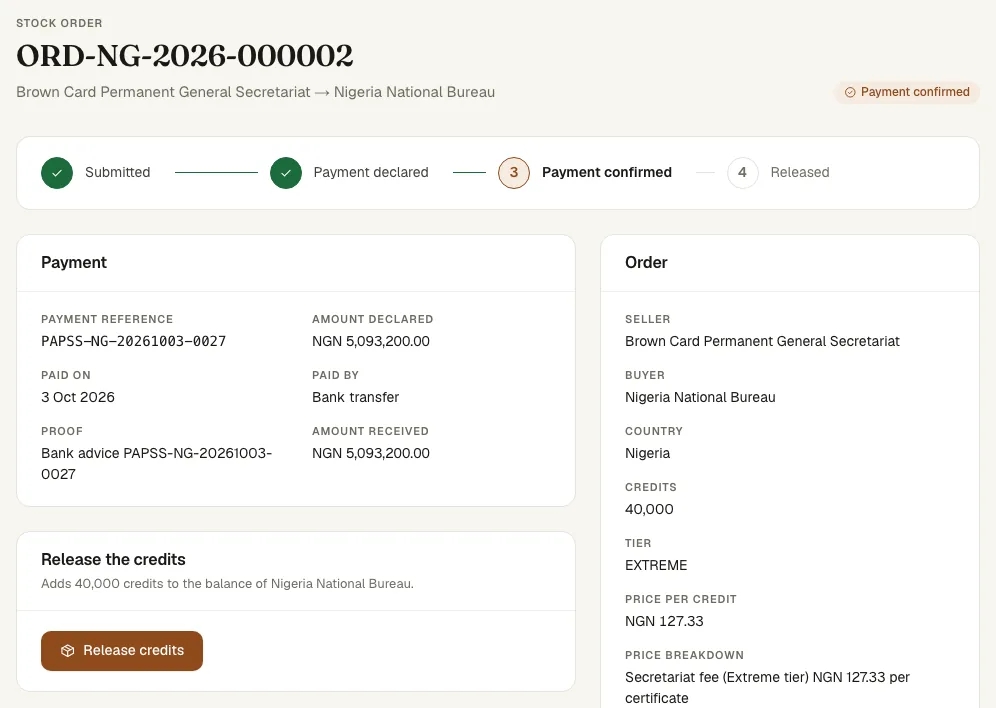
- Payment exception: confirm with a Reason when you accept the difference, or wait for the buyer to declare again. Either side can cancel the order.
- A bureau’s own balance funds the credits it releases to insurers. When it is short, the order stays confirmed and says how many credits are missing: order more from the Secretariat, then release again.
- Paystack payments are checked with Paystack and released automatically.
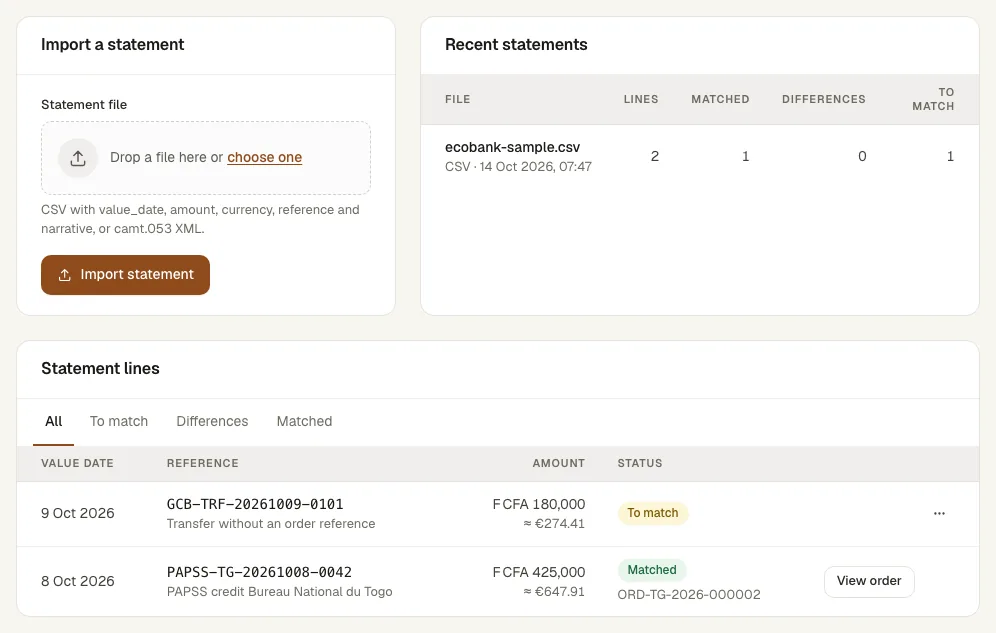
- Bank statements (Secretariat): on Payments, Import statement reads a statement file and confirms each order whose reference, amount and currency match exactly. Lines that differ or match nothing wait under Differences and To match, with Match to order in the row menu.
12. Watching your stock
WhoBureau administrator · Stock officer · Insurer administrator · Underwriter
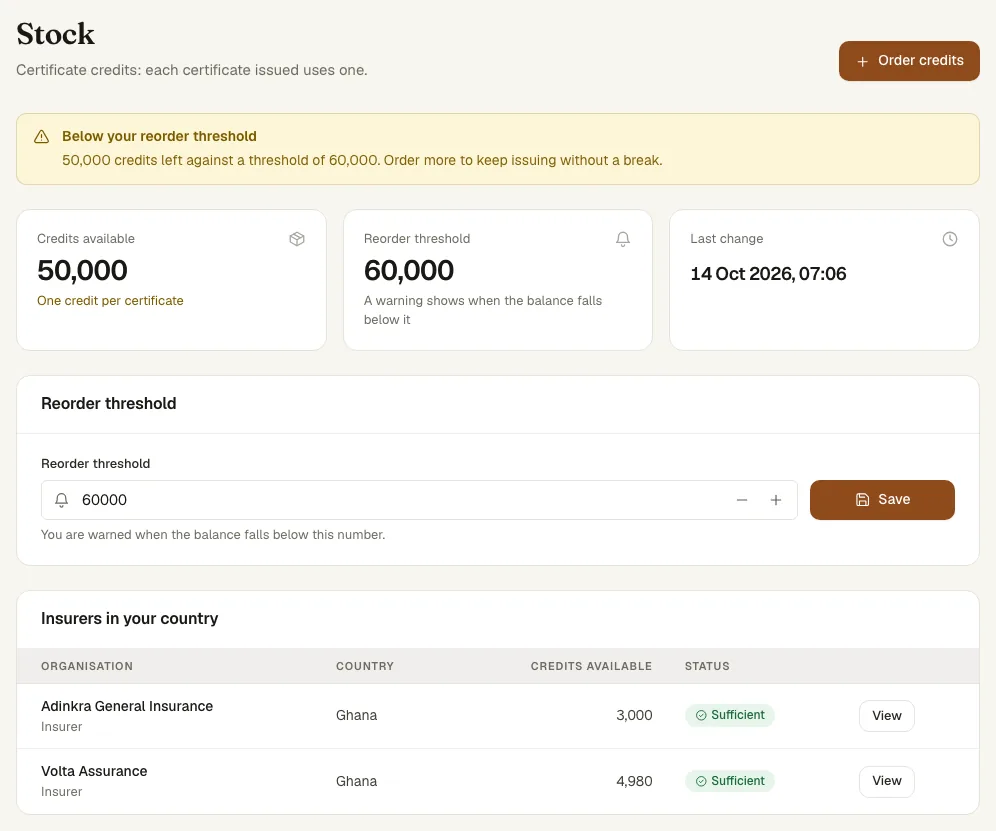
Stock shows your balance of credits, your reorder threshold and every movement: opening balance, credits received or sold, and one credit for each certificate issued. A bureau also sees the balance of each insurer in its country.
- Open Stock to see Credits available, the Reorder threshold and the movements, newest first.
- To set the threshold (bureau administrator or stock officer), enter it in Reorder threshold and press Save. Open an insurer’s row to set that insurer’s threshold.
- When a balance falls below its threshold, the organisation’s stock and administrator roles receive an email and a notification.
13. Issuing a certificate
WhoInsurer administrator · Underwriter
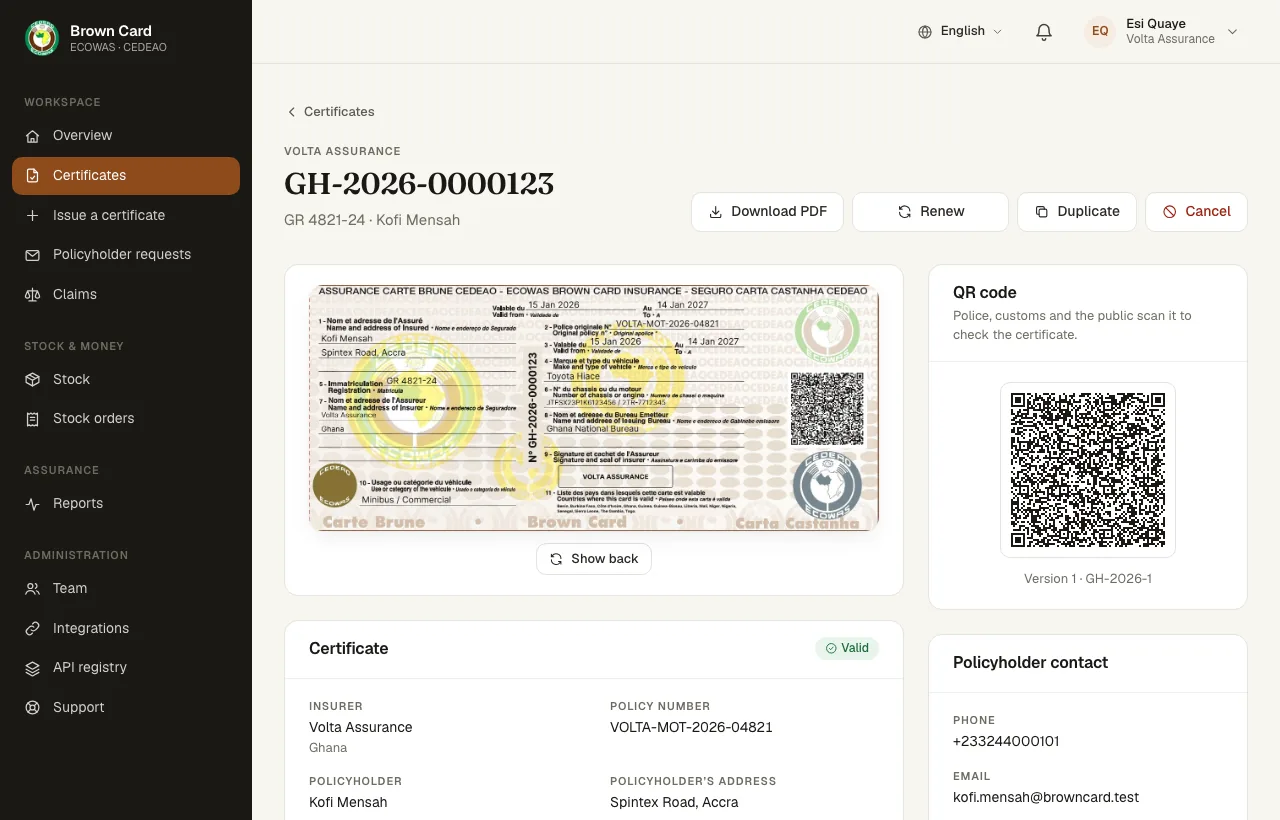
Every certificate is an ECOWAS Brown Card valid in the 11 countries of the scheme. The platform gives it its number, such as GH-2026-0000123, signs it and puts a QR code on it. Issuing uses one credit.
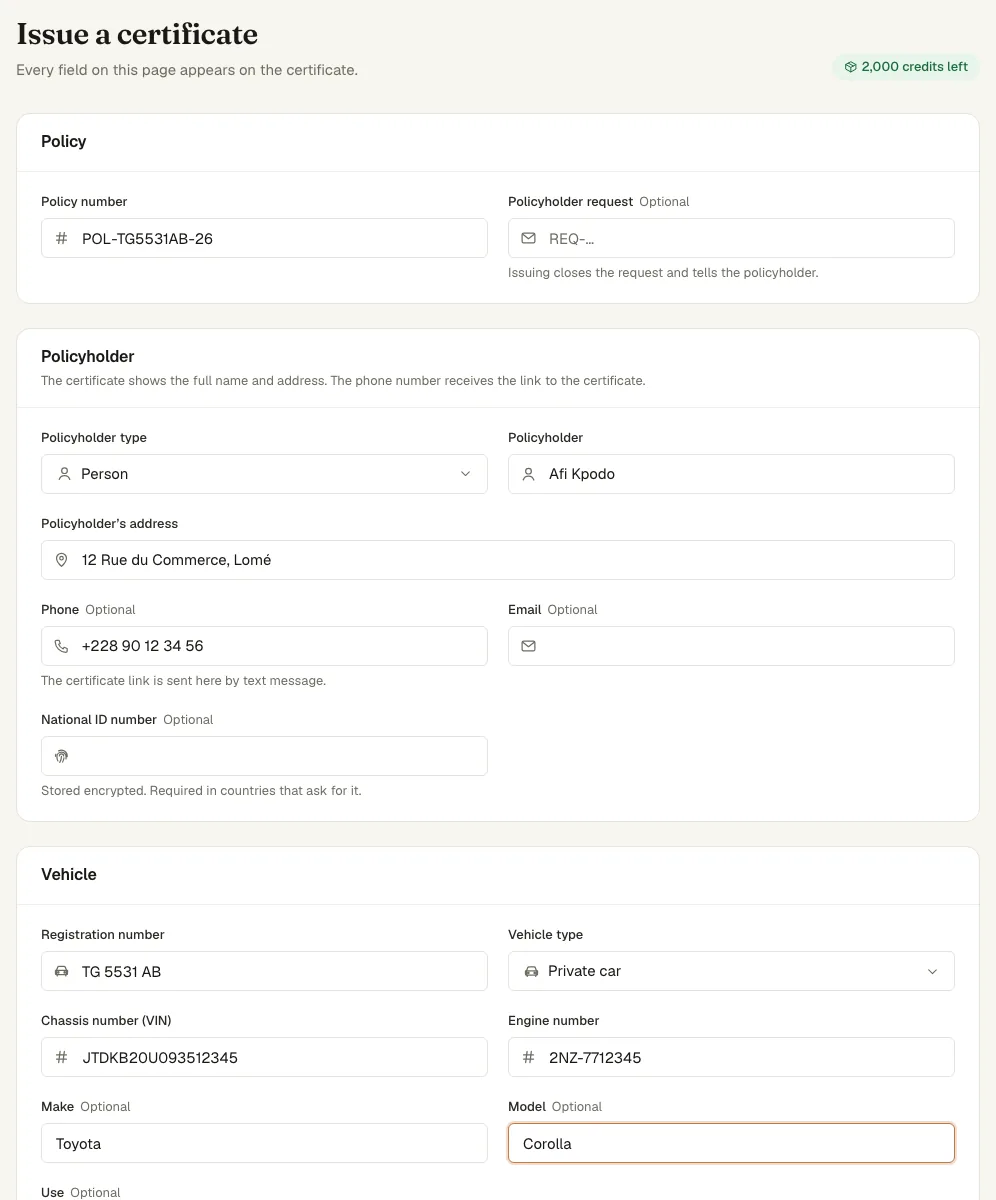
- Open Issue a certificate. The badge in the header shows the credits you have left.
- Fill in the Policy, the Policyholder and the Vehicle: registration, vehicle type, chassis number, engine number and make. Every field appears on the certificate.
- Under Period and document, choose Certificate or Cover note (temporary cover for up to one month) and the dates. When the cover starts before today, say why in the field that appears; the reason is kept in the certificate’s history.
- Press Issue certificate. The certificate opens with Certificate issued, the card, the QR code and Download PDF.
- A policyholder with a phone number on file receives the link to the certificate by text message.
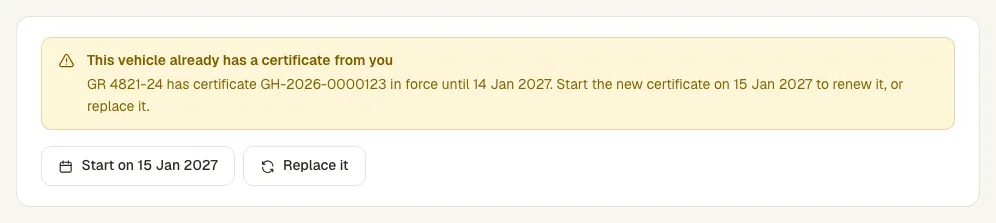
A vehicle carries one certificate at a time. When your own certificate for the vehicle is still in force, the form names it and offers three choices:
- Start on … — the new certificate starts the day after the current one ends (a renewal); the current one stays in force. Press Issue certificate again.
- Replace it — the current certificate is replaced from now on. Give the Reason for the replacement, then press Replace and issue; the reason is kept in the history of both certificates. Keep the current certificate goes back.
14. Issuing certificates from a file
WhoInsurer administrator · Underwriter
A file issues many certificates at once, with a result for each row. Each issued row uses one credit.
- Open Integrations and press Download the template. It has one example row and the columns the platform reads.
- Fill in one row per certificate: policy number, policyholder, vehicle and the dates. Dates may be written YYYY-MM-DD or DD/MM/YYYY.
- Under Upload a file, choose the file and send it. The batch page opens with Rows, Issued, Held, Rejected and Duplicate.
- Open the Held and Rejected tabs. Correct opens a row: fix it and press Save and issue. Retry held rows tries again the rows held for a reason that has since gone, such as an empty stock.
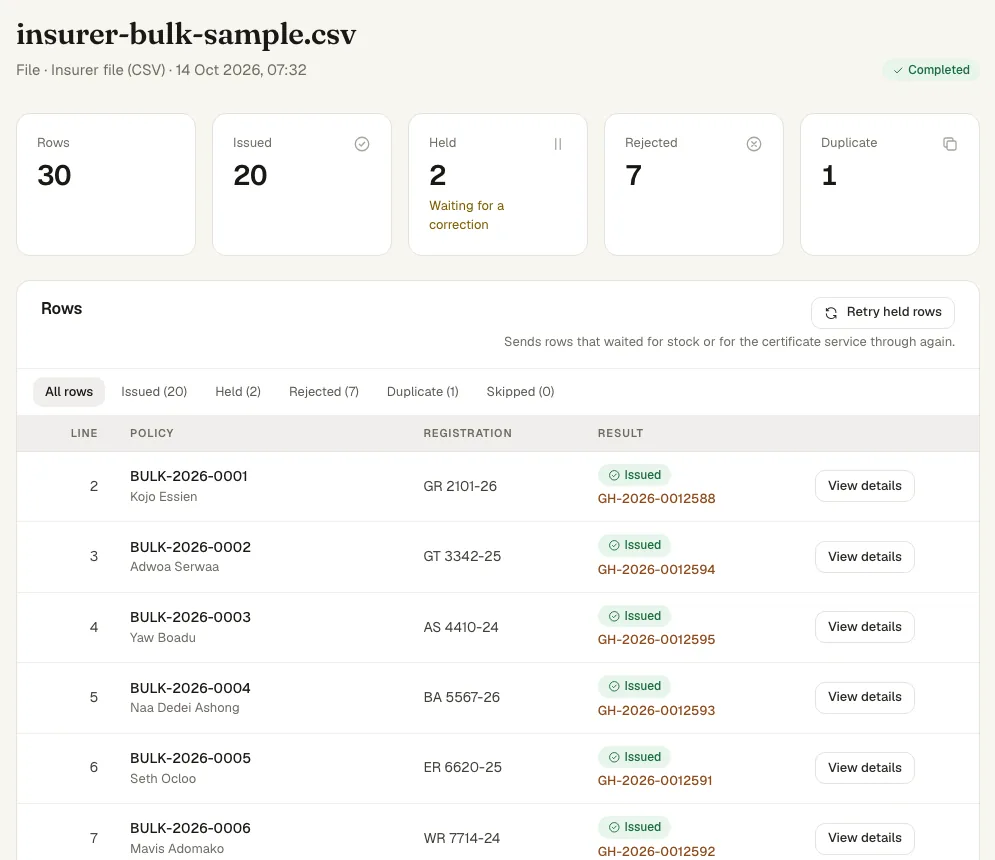
- Issued rows show their certificate number.
- Held rows wait for something: a missing item, credits, or another insurer’s certificate in force for the vehicle.
- Rejected rows hold a value the platform refuses, such as an impossible date; correct them or upload a corrected file.
- Duplicate rows were issued before, from the same policy, vehicle and start date.
15. Sending certificates through the API
WhoInsurer administrator · Bureau administrator
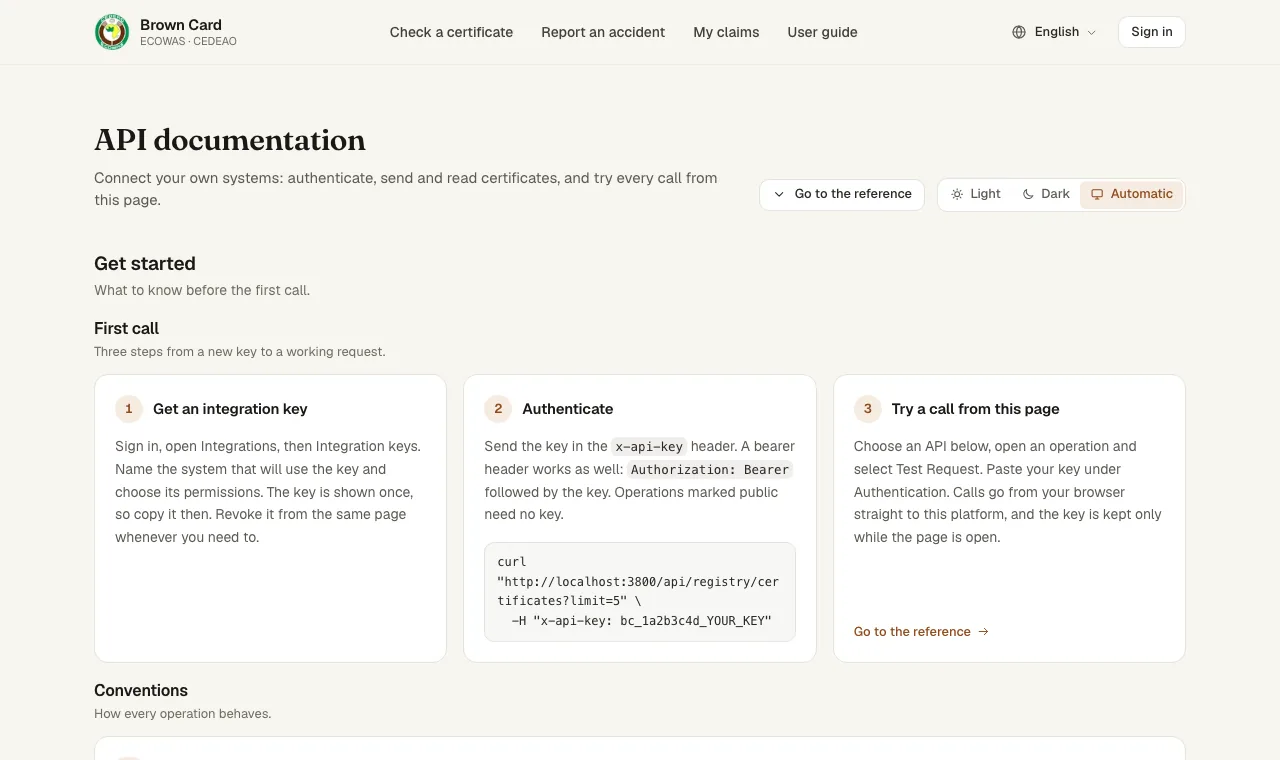
An insurer’s own system can issue certificates, send batches and read results through the API. The API documentation has a getting-started guide and a page for each API; the API registry lists every operation.
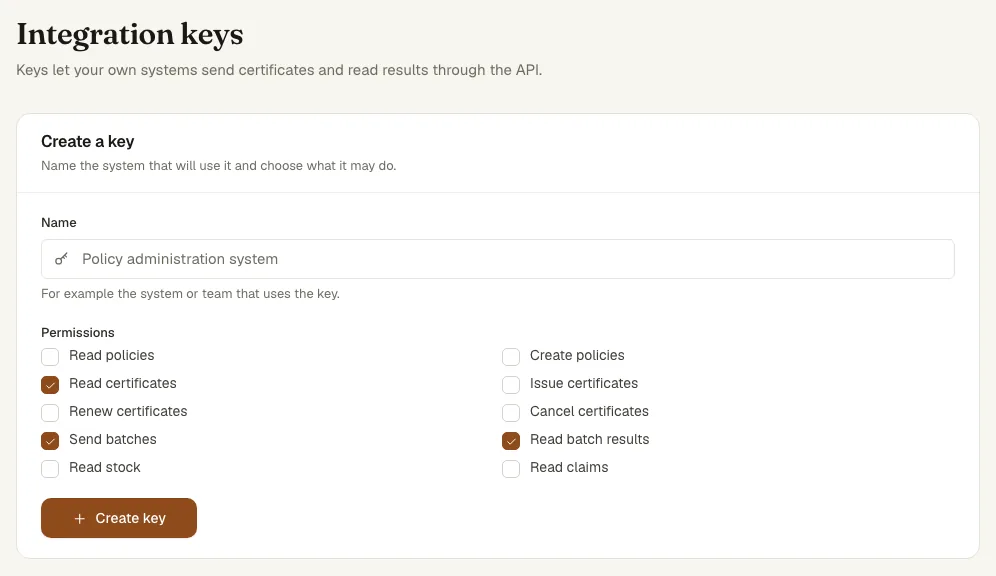
- Open Integrations and press Integration keys.
- Give the key a Name, tick its Permissions (for example issue certificates, send batches, read batch results) and press Create key.
- Copy the key from Copy your key now: it is shown once. Store it in your system’s secrets.
- Follow Get started in the API documentation: send the key with each call, and an idempotency key with each batch so that a retry issues each certificate once.
- Revoke a key from the same page when its system stops using it.
16. Renewing, replacing, suspending and cancelling
WhoInsurer administrator · Underwriter · Bureau administrator · Secretariat administrator
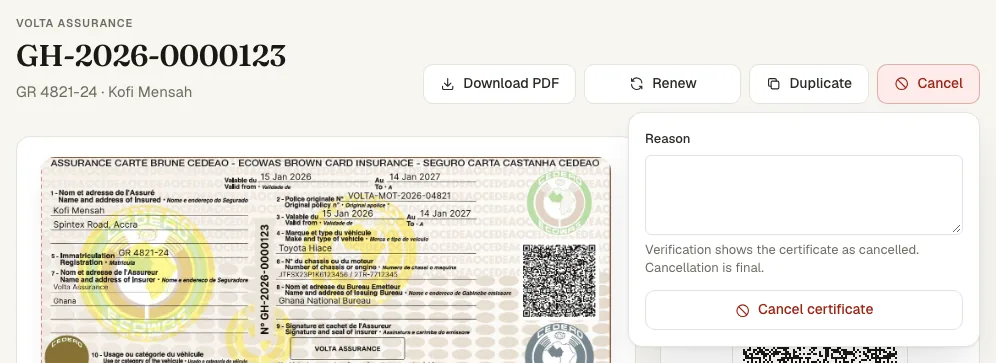
The actions sit at the top of a certificate’s page. Each one is recorded in the certificate’s history and reaches every check within a minute.
- Renew (issuing insurer) issues a new certificate from the day after this one ends, for one year (one month for a cover note). It uses one credit; the current certificate stays in force until its end.
- Replace (issuing insurer) happens from the issue form, with a reason, when the vehicle’s current certificate must stop now. See Issuing a certificate.
- Duplicate (issuing insurer) prints a new copy with the same number, marked DUPLICATE. The older copy’s QR code then reads as cancelled and points to the newer copy.
- Cancel certificate (issuing insurer) ends the certificate for good. A reason is required.
- Suspend and Reinstate (bureau administrator, Secretariat administrator) stop and restart a certificate in force. A reason is required; checks read “Suspended” meanwhile.
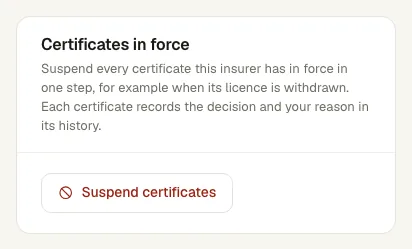
A bureau administrator or the Secretariat can suspend all of an insurer’s certificates at once from the insurer’s page, card Certificates in force: Suspend certificates with a reason, and later Reinstate certificates, which restores exactly the certificates that batch suspended. Suspending the insurer under Standing does the same automatically.
17. Answering policyholder requests
WhoInsurer administrator · Underwriter
Policyholders ask for a new policy or a renewal from their account or by USSD. The request reaches the insurer they chose.
- Open Policyholder requests. New requests are under New.
- Use Take to show the policyholder you are working on it.
- Use Issue to open the issue form filled in from the request (for a renewal, from the previous certificate). Issuing closes the request and tells the policyholder.
- Or use Decline with a Reason; the policyholder reads it.

18. For policyholders: your certificate and your claims
WhoPolicyholder · Anyone
Your insurer sends you a link to your certificate by text message. The link opens your card, its status and Download the certificate (PDF).
- Open the link and press Save to my account.
- Enter the six-digit code sent to the phone or email your insurer has on file.
- Enter your full name, email and a password, then press Create my account. You arrive in My certificates.
- Use My requests to ask an insurer for a new policy or a renewal, and My claims to report an accident and follow it. Add a certificate takes the link of another certificate.
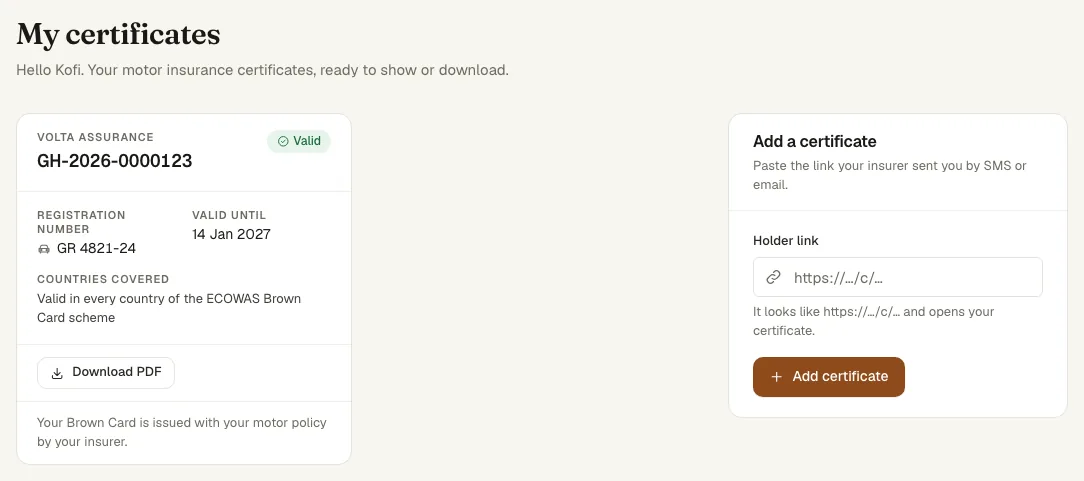
In countries where certificates come from the national motor insurance database, your insurer issues your Brown Card with your motor policy, and renewals go through your insurer.
19. Checking a certificate
WhoAnyone · Verifier
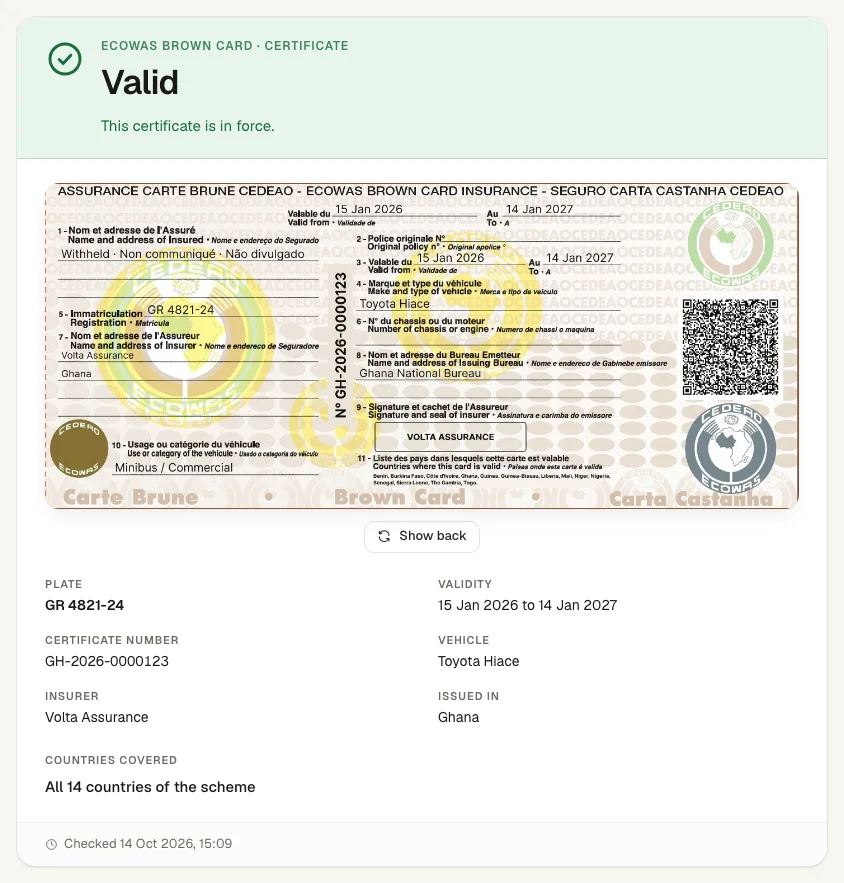
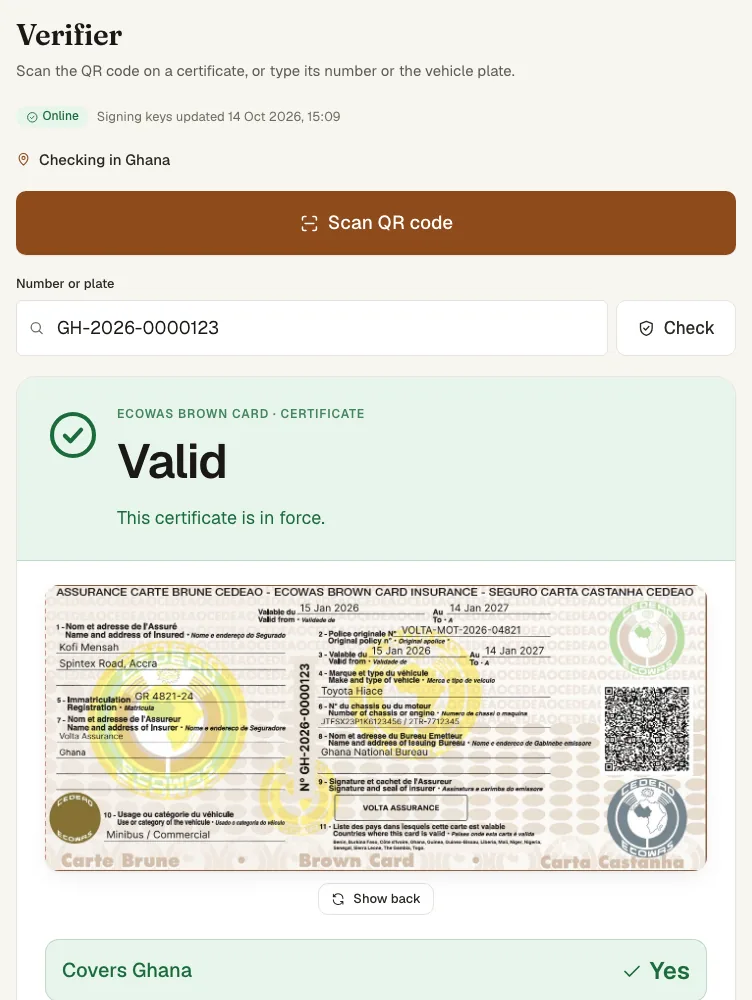
Anyone can check a certificate. The answer gives the status — Valid, Not yet valid, Expired, Suspended, Cancelled, Not found or Not authentic — with the vehicle, the insurer, the validity dates and the countries covered.
- QR code: scan it with a phone camera. The page confirms the signature and shows the live status.
- Number or plate: enter either on Check a certificate and press Check.
- A certificate file: Check a certificate file on the same page reads the mark hidden in the card picture.
- USSD: dial the Brown Card USSD code of your country and choose 1 Check a certificate.
Police and customs officers use the verifier, which installs on a phone from /verifier:
- Sign in with your authority account and two-factor code, so that results include the holder and the policy and your checks are recorded.
- Press Scan QR code and point the camera at the code, or type a Number or plate and press Check.
- Read the result and the line that says whether the certificate covers your country. Press Scan another for the next vehicle.
- Offline, the verifier checks the QR signature with the keys it keeps, shows any suspension or cancellation recorded in the list it last downloaded, with that list’s time, and queues the scan; it uploads when the network returns.
- History lists your checks and your organisation’s.
20. Reporting an accident and opening a claim
WhoAnyone · Policyholder · Claims officer
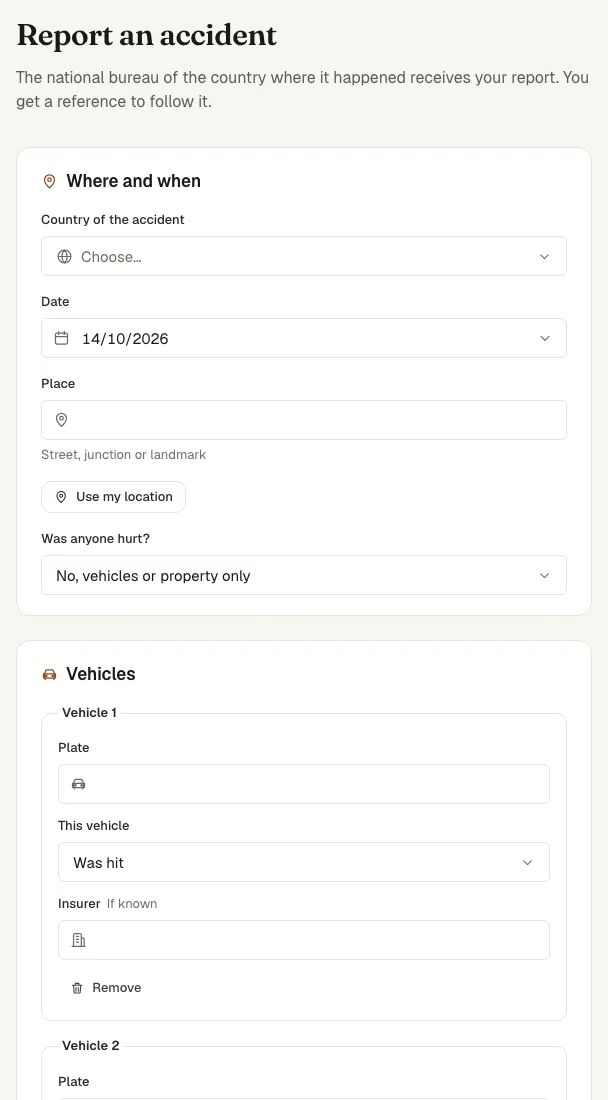
An accident reaches the bureau of the country where it happened in one of four ways: the public report form, USSD, a policyholder’s account, or the bureau itself.
- On Report an accident, fill in Where and when, the Vehicles involved (plate, role, insurer), up to 8 Photos and Your contact. Press Send the report.
- Keep the claim reference shown on the next page. Follow my claim opens Track a claim: enter the reference and phone, then the code sent by text message, to see the stage.
- By USSD, choose 3 Report an accident and follow the prompts; 4 Track a claim follows it from the same phone.
A claims officer of the handling bureau opens the claim:
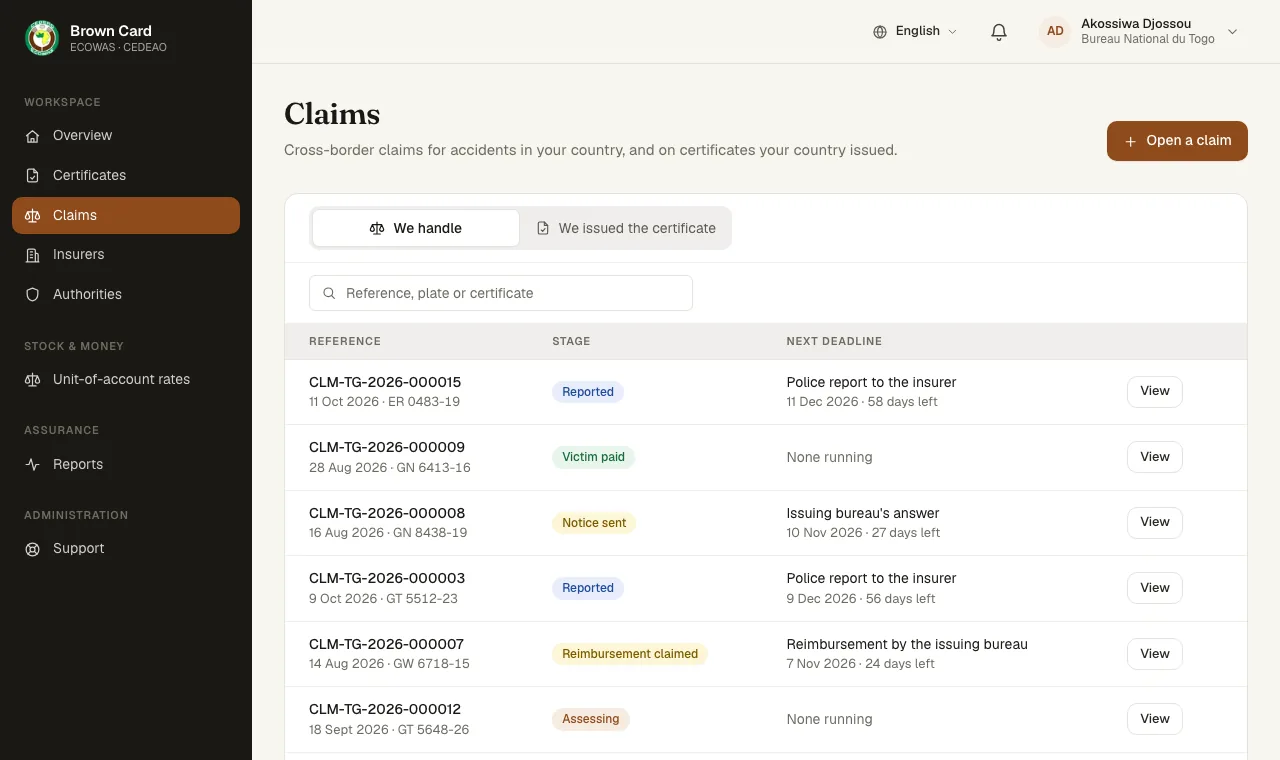
- Open Claims and press Open a claim, or open a reported claim from the list.
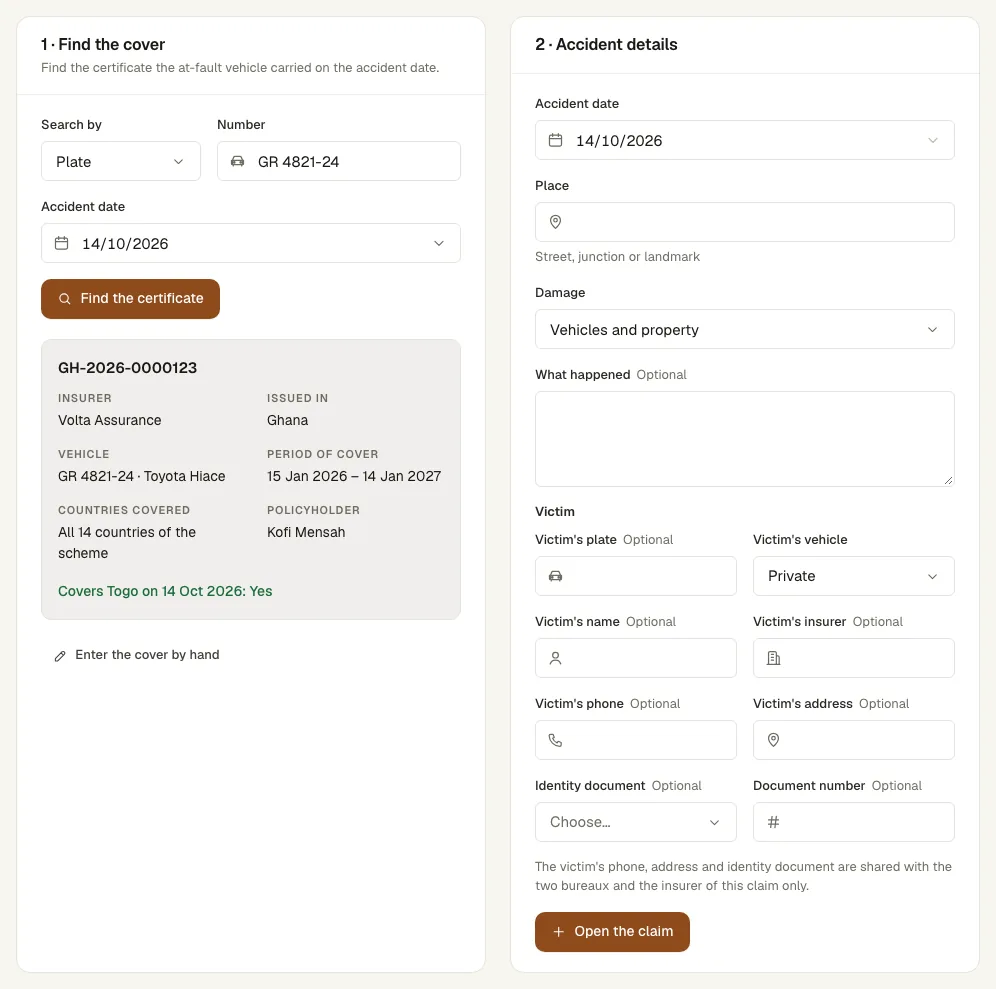
- Under 1 · Find the cover, search by Plate, Certificate number or Policy number with the accident date, and press Find the certificate. The card says whether the certificate covers your country on that date.
- When the certificate cannot be found, use Enter the cover by hand; the claim is marked “Cover not confirmed”.
- Under 2 · Accident details, describe the place, the damage and the victim, with the victim’s contact (shared with the two bureaux and the insurer). Press Open the claim.
- For a reported claim, attach the cover on the claim page with Attach the cover, then Take this claim — or Decline the claim with a reason when there is no cover for that date or place.
- One accident makes one claim. A second claim for the same vehicle, day and place is refused and names the first; the same vehicle at another place that day asks you to confirm it is a different accident.
- The claim belongs to the bureau of the country of the accident. A claim on a certificate issued in your own country is handled nationally.
- The issuing bureau sees the claim, and is notified, once the cover is attached. The insurer of the certificate follows it read-only and adds documents.
21. Handling a claim: facts, assessment, offer and payment
WhoClaims officer
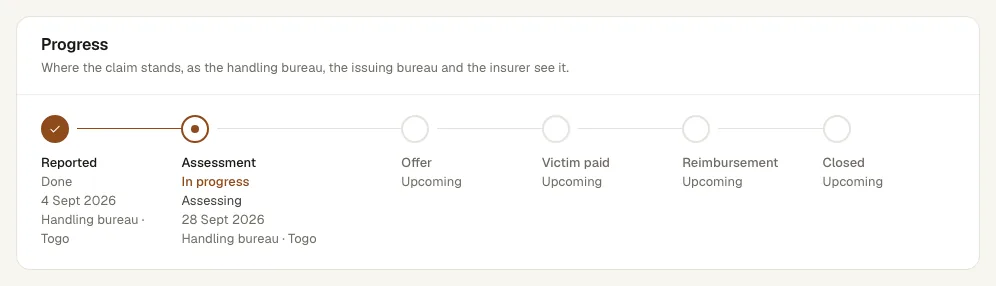
The claim page shows the Progress of the claim in six steps — Reported, Assessment, Offer, Victim paid, Reimbursement, Closed — with the next deadline, and a line that says whose turn it is: “Your turn: …” or “Waiting for the issuing bureau (country) to …”.
- Under Dates that move the deadlines, record when the police report arrived and when the insurer was told of the accident and, for an injury, the medical dates.
- Add photos and documents. Where photo reading is turned on, Read the photos gives a reading of the damage for you to review; it supports your judgement.
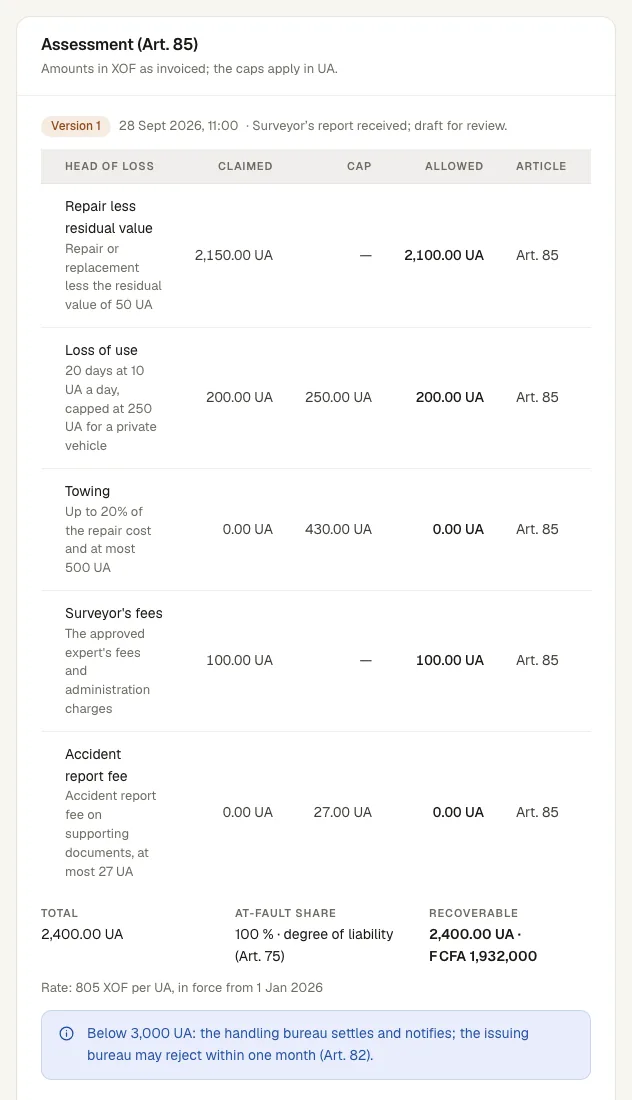
- Under Assessment (Art. 85), enter the repair cost and the other heads of damage, then Save assessment. The platform applies the Convention’s caps and converts to UA at the Secretariat’s rate.
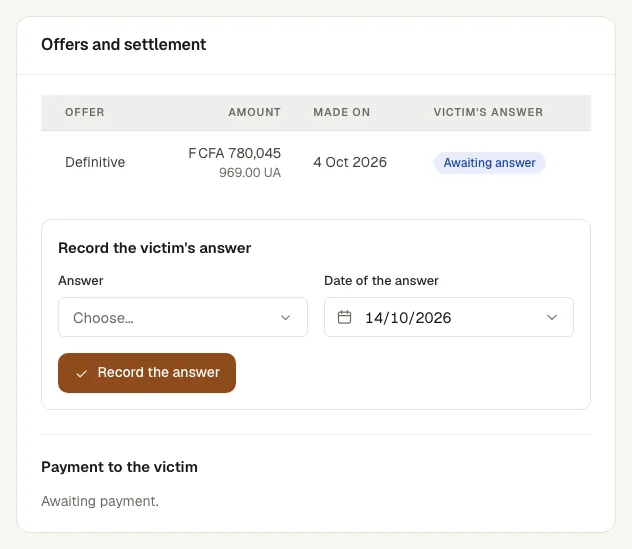
- Under Offers and settlement, choose a provisional or definitive offer, enter the amount and date and press Make the offer. An offer above the assessed amount needs a reason, which the issuing bureau reads.
- Record the victim’s decision with Record the victim’s answer. Accepted, the claim is agreed; refused, you assess again. The victim may withdraw an acceptance within 15 days (Record the denunciation).
- Pay the victim and press Record the payment with the amount, date and payment reference.
- For an injury or a death, the offer to the victim or the beneficiaries is due within the Convention’s deadline (Art. 32); the claim page shows the date. A late offer carries interest at twice the bank rate the Secretariat records for the country.
- The payment is due within 15 days after the 15-day withdrawal period. A late payment carries interest of 5% a month (Art. 37(2)), shown on the claim.
- A payment figure entered in error is corrected with a linked entry and a reason, until the reimbursement is claimed.
- Withdraw the claim closes a claim the victim withdraws.
22. Settlement approval above 3,000 UA
WhoClaims officer
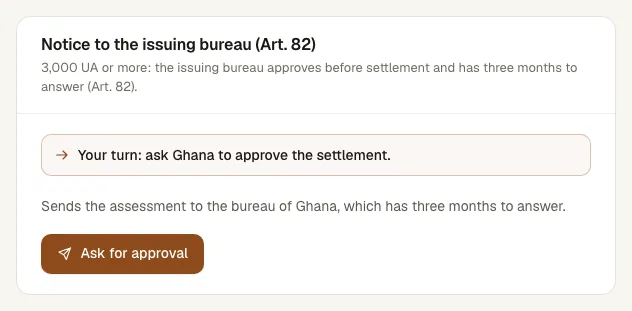
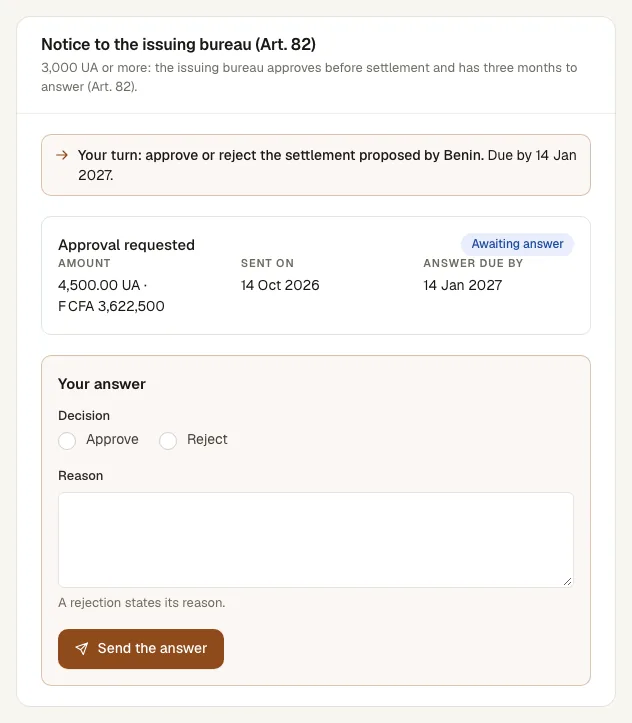
Above 3,000 UA, the issuing bureau approves the settlement before the handling bureau pays. It answers within three calendar months; when it does not answer in time, the settlement is approved by silence.
- Handling bureau: on the claim, card Notice to the issuing bureau (Art. 82), press Ask for approval once the assessment is saved (the offer may already be made or agreed).
- Issuing bureau: the request arrives as a notification. Open the claim and, under Your answer, choose Approve, or Reject with a reason, and send.
- Handling bureau: once approved — by answer or by silence — record the payment to the victim. Until then, Record the payment waits for the approval.
- After a rejection, send a revised settlement, or refer the claim to arbitration.
23. Notice, reimbursement claim and the answer
WhoClaims officer
Once the victim is paid, the handling bureau claims the amount back from the issuing bureau.
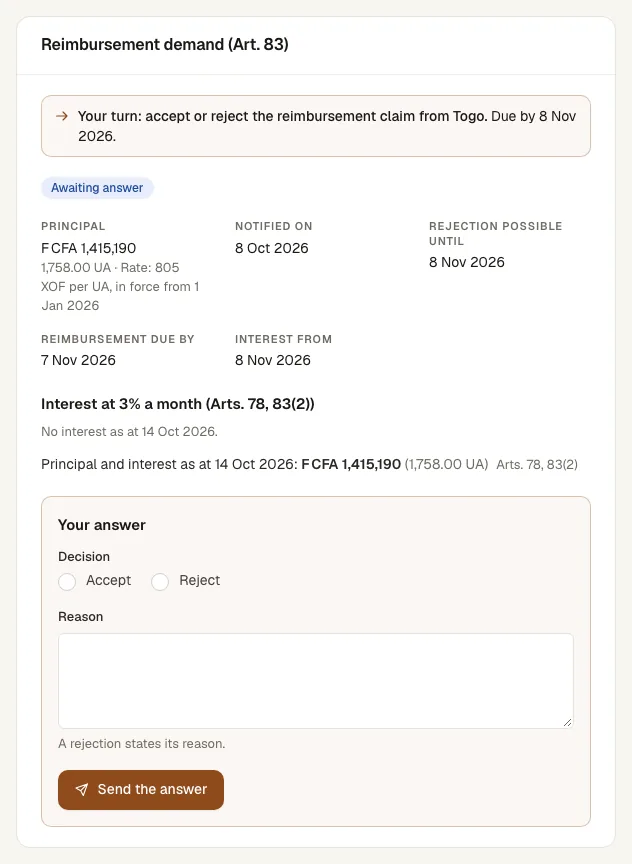
- Up to 3,000 UA: press Notify and claim reimbursement. The notice and the reimbursement claim leave together, with the date until which the issuing bureau may reject.
- Above 3,000 UA, after the approval: press Claim reimbursement. The approval already given covers it.
- The reimbursement is due one calendar month after the notice; the card shows the due date and, after it, the interest of 3% a month.
Up to 3,000 UA, the issuing bureau accepts or rejects the reimbursement claim within one calendar month of the notice. When it does not answer in time, the settlement is approved and the reimbursement is due.
- Issuing bureau: open the claim from the notification. Card Reimbursement demand (Art. 83), under Your answer, choose Accept, or Reject with a reason.
- A rejection moves the claim to Disputed; either bureau can then refer it to arbitration.
24. Reimbursement and closing
WhoClaims officer
- Issuing bureau: pay the amount due with the interest shown, then press Declare the payment with the reference, Date sent and Amount sent.
- Handling bureau: compare with your bank statement and press Confirm receipt. The claim is reimbursed.
- Handling bureau: press Close the claim.
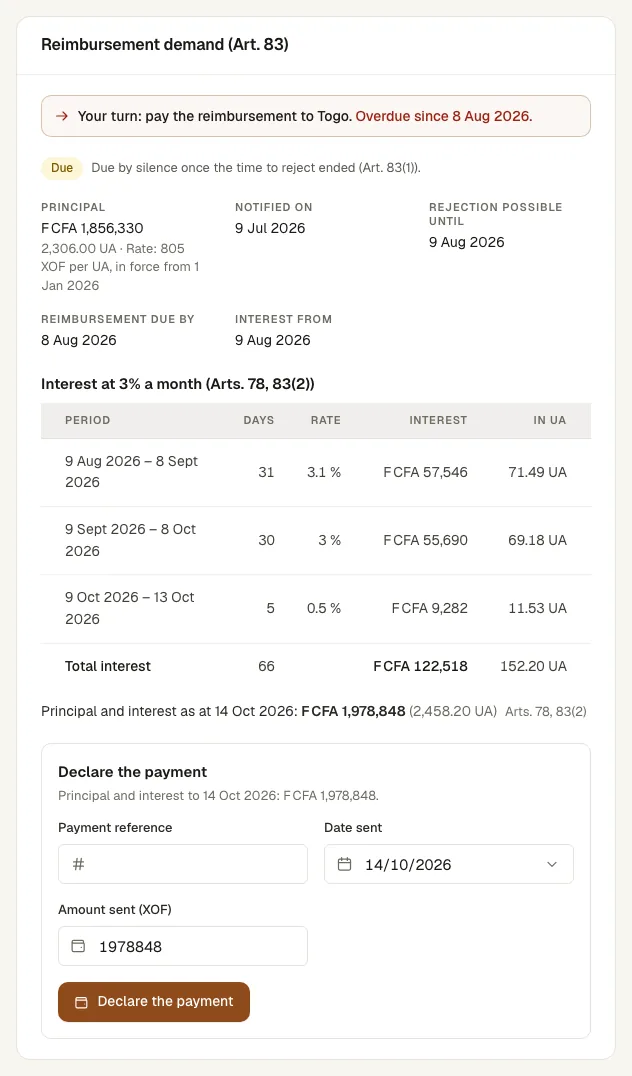
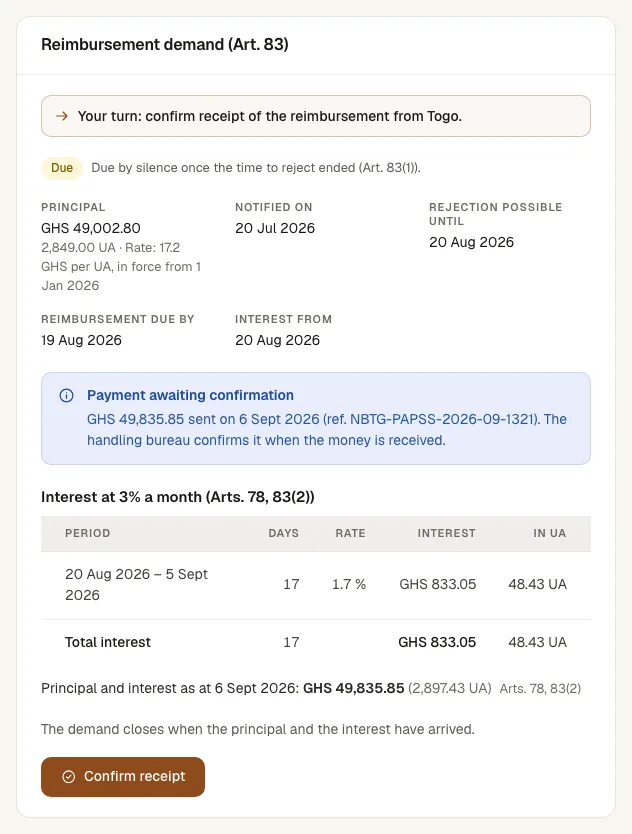
Interest runs until the day the money arrives. A declaration short of the amount due with interest is shown as short, and the issuing bureau declares the full payment.
25. Arbitration
WhoClaims officer
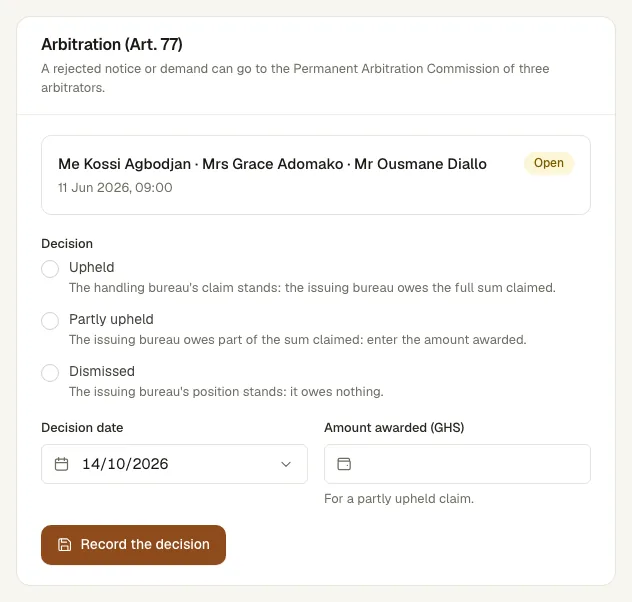
- Either bureau: on a disputed claim, press Refer to arbitration and name the three arbitrators of the Permanent Arbitration Commission, each a different person, with an optional note.
- When the arbitrators have decided, either bureau presses Record the decision: Upheld, Partly upheld with the amount awarded, or Dismissed.
- Upheld or partly upheld: the reimbursement is due again, for the amount decided. Dismissed: the claim closes.
26. Bureaux, insurers, authorities and scheme settings
WhoSecretariat administrator · Platform operator · Bureau administrator
The Secretariat registers each country’s national bureau; each bureau registers its insurers and authorities. Each country’s scheme settings live on its bureau’s page.
- Secretariat: open Bureaux and press Register a bureau. Choose the country, give a permanent Code and the Name, and press Register.
- On the bureau’s page, card People, press Invite a person to invite the bureau’s first administrator.
- Card Scheme settings: set the Status (Onboarding, Pilot, Paper and digital, Live), the paper period, the plate example and pattern and the USSD code. The Secretariat also sets How certificates are issued: by insurers on the platform, or from the national system.
- Bureau: open Insurers (or Authorities) and register each organisation with its code, name and, for an insurer, its licence number. Then invite its administrator from its page.
- Card Standing: Suspend, Reinstate, Mark as not in good standing or Restore good standing, with a reason. Standing decides whether an organisation can order stock and issue certificates.
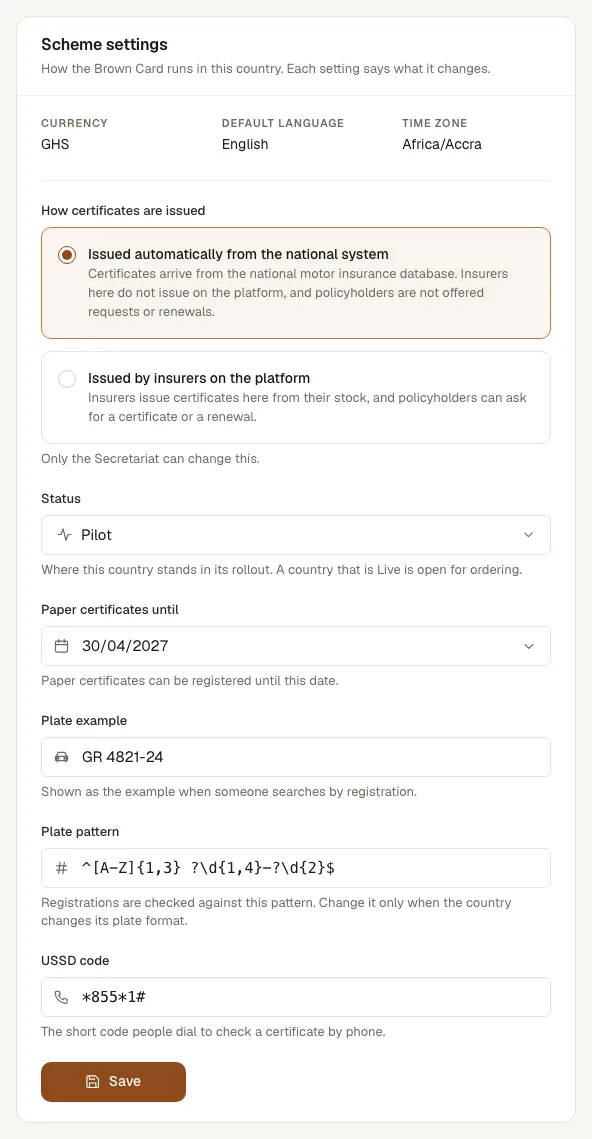
The Public holidays card on the same page lists the country’s holidays, which the support deadlines skip.
27. Tier fees, unit-of-account rates and year-end rates
WhoSecretariat administrator · Secretariat finance · Bureau administrator
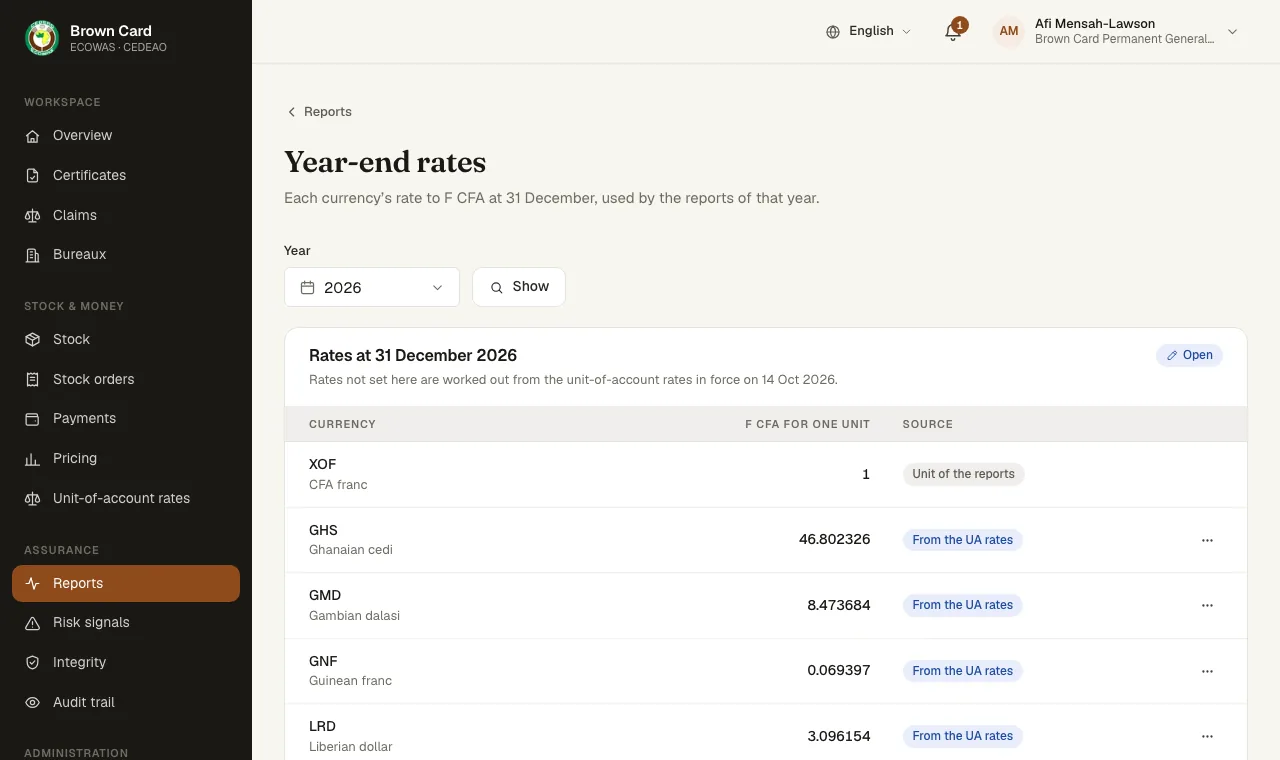
Three sets of figures drive the money: the Secretariat fee for each tier, the unit-of-account rate of each currency, and the rate to F CFA at 31 December for the annual reports. Each applies from a date, so work already done keeps the figure of its day.
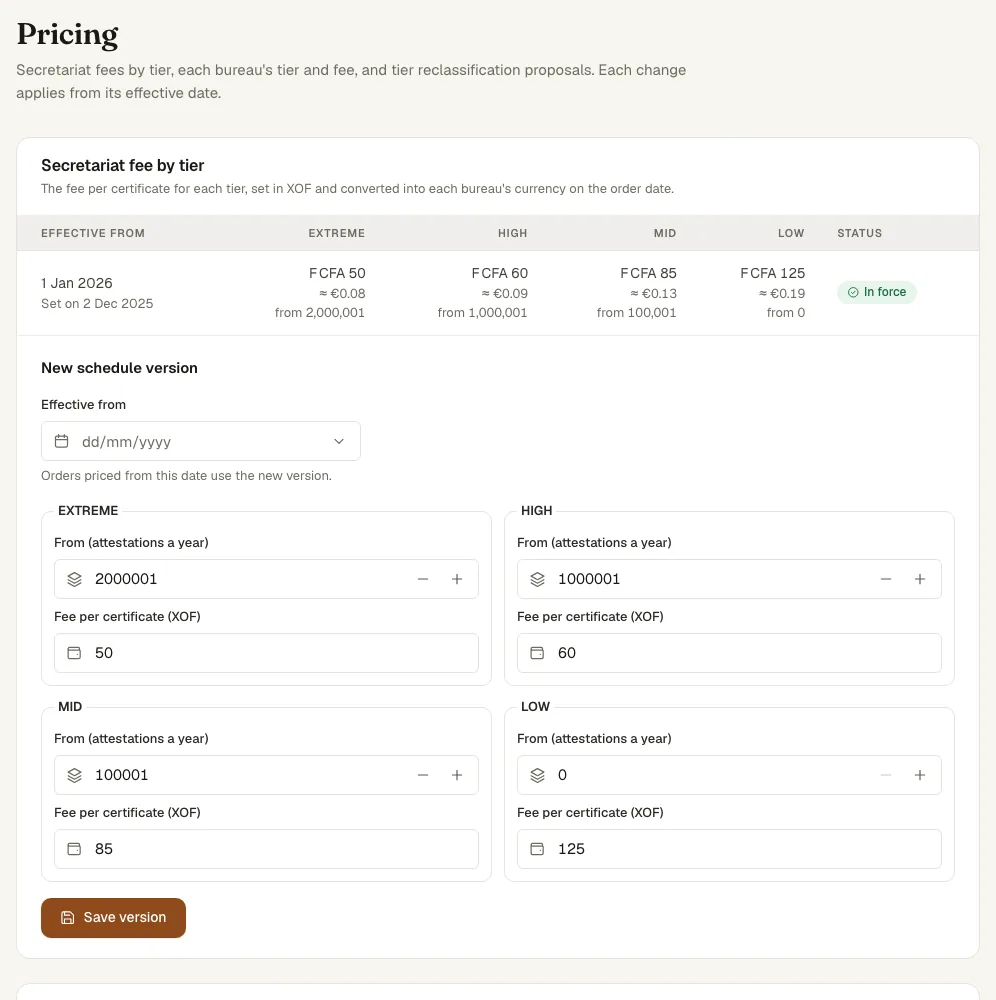
- Tier fees (Secretariat administrator or finance): on Pricing, card Secretariat fee by tier, use New schedule version with the fees and the date they apply from, then Save version.
- Tiers: in the list of bureaux for the year, Publish tier sets a country’s tier. Reclassification proposals lists the tiers proposed from the year’s issuance; Approve applies one from 1 January.
- Bureau fee (bureau administrator): on Pricing, Set your bureau fee with the amount and Effective from, then Save fee. Insurers pay the Secretariat fee plus the bureau fee.
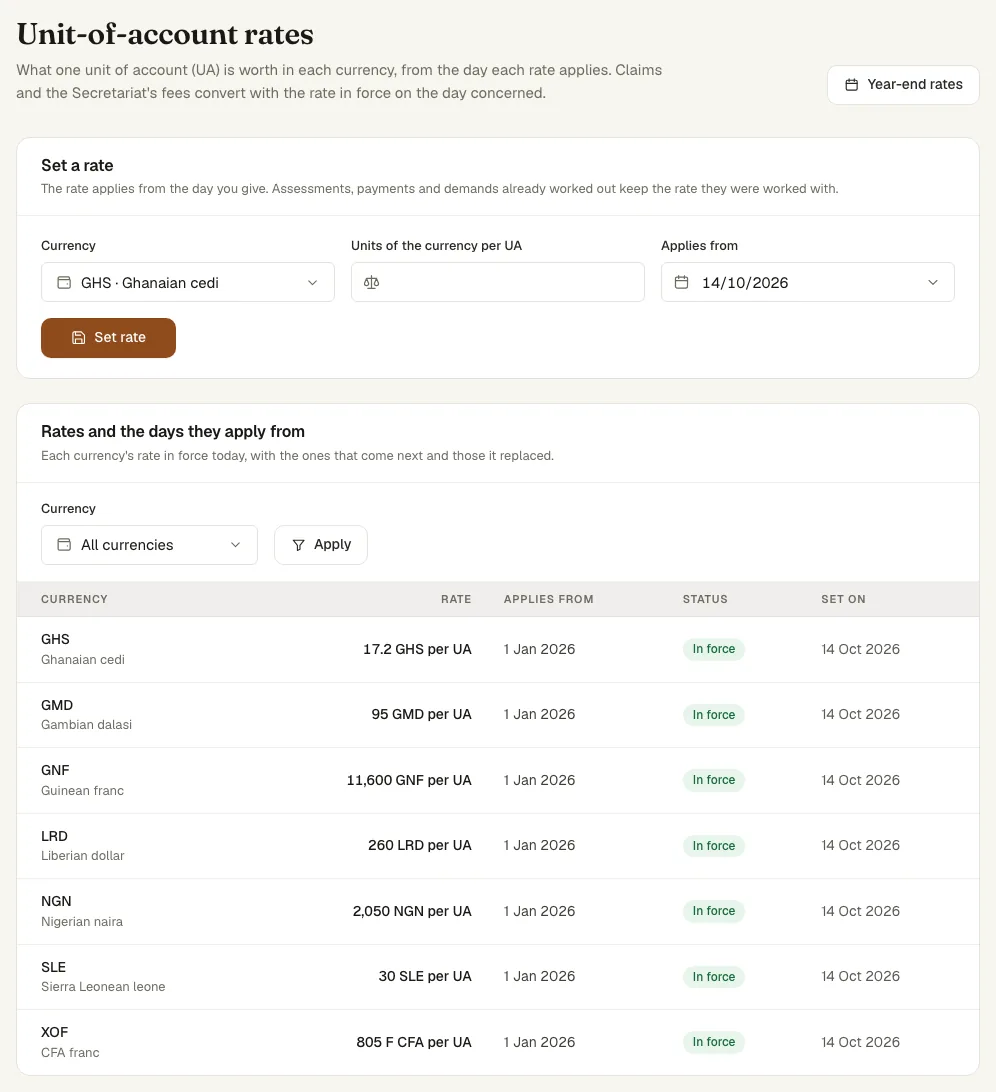
- Unit-of-account rates (Secretariat administrator): open Unit-of-account rates and, in Set a rate, give the Currency, the Units of the currency per UA and the day it Applies from, then press Set rate. Claims and fees use the rate in force on the day; the list marks each rate In force or Comes into force, and bureau administrators and claims officers read it too.
- Year-end rates (Secretariat administrator or finance): on Reports › Year-end rates, Change the rate for each currency, then Close the year once 31 December has passed. Reopen the year allows a correction.
28. The annual bureau report: submit and reopen
WhoBureau administrator · Bureau finance · Secretariat administrator · Secretariat finance
Each bureau reports its year to the Secretariat. The platform counts Sections II to VI — Brown Cards sold, claims declared, collections, payments and arbitration — and the bureau writes the rest.
- Bureau administrator or finance: open Reports › Annual reports and the year.
- Under What your bureau reports, fill in Section I (the executive secretary, staff, guarantee and compensation funds, the annual minimum wage) and Sections VII to X (perspectives, challenges, approaches, awareness campaigns and social actions). Press Save as you go.
- Check the counted sections. Section VI lists the arbitration files waiting for payment on two lines: owed to the bureau, and owed by the bureau.
- From 1 January of the following year, press Submit. The figures freeze as they stand.
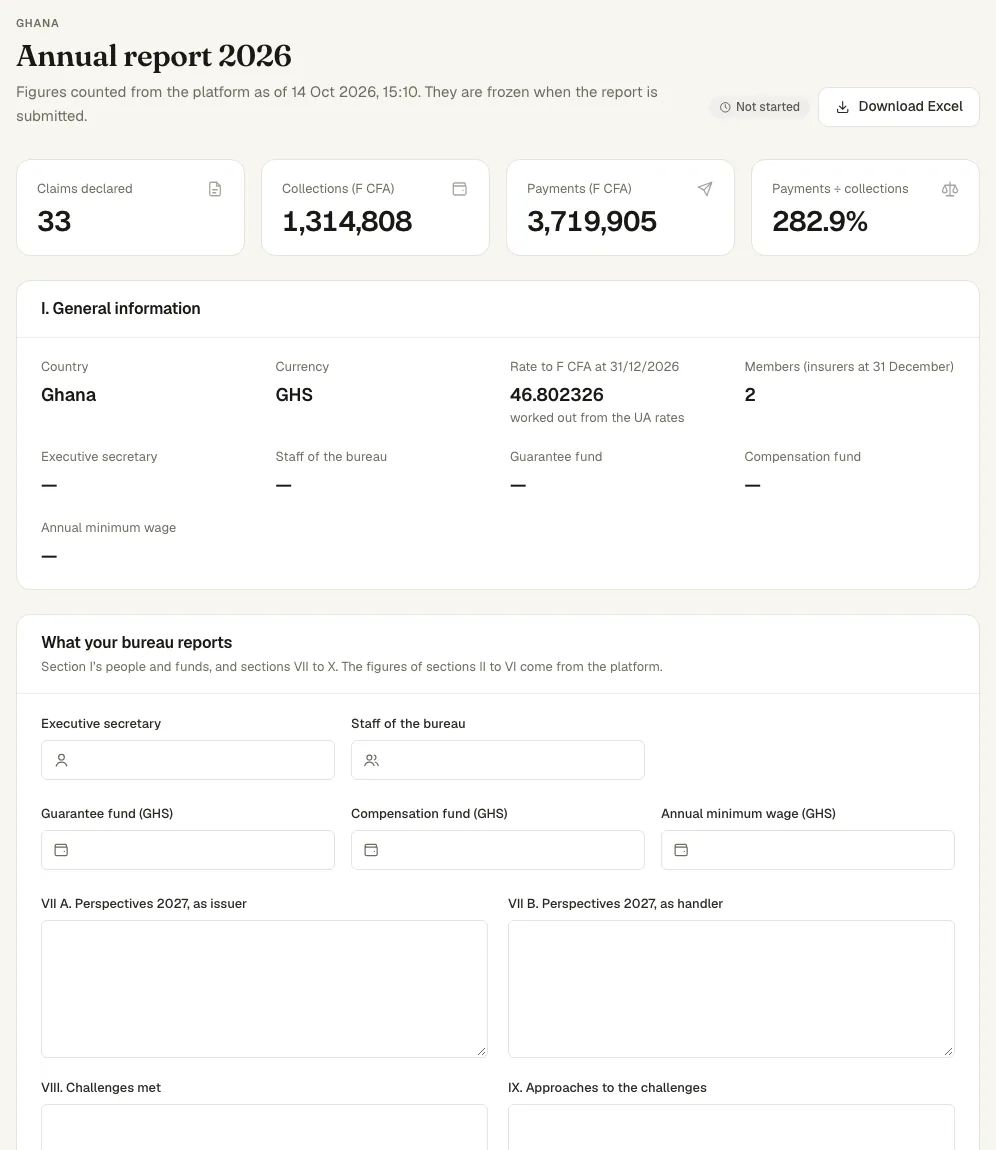
The Secretariat (administrator or finance) reads every submitted report and can reopen one with a reason. The bureau sees “Reopened by the Secretariat on …” with the reason, corrects the report and submits it again.
- Secretariat: open Reports › Annual reports, choose the year and View report, or Download Excel.
- To reopen, enter the Reason in Reopen the report and press Reopen. The report becomes a draft again and its history records the reopening.
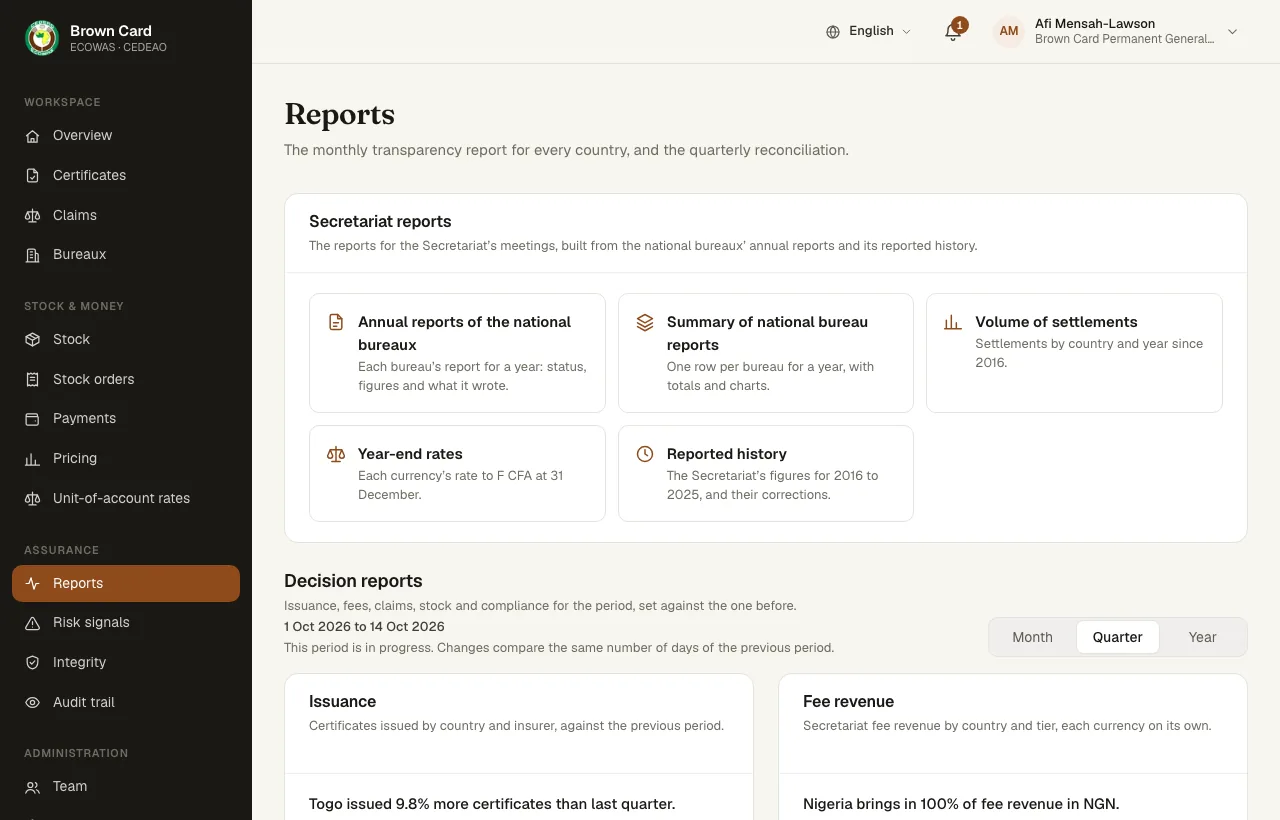
29. Summary, settlements and decision reports
WhoSecretariat administrator · Secretariat supervisor · Secretariat finance
- Summary of national bureau reports: one row per bureau for the year, with totals and charts. An open year lists every bureau as counted now, with the reports still to come.
- Volume of settlements: settlements by country from 2016, in thousands of F CFA.
- Reported history: the Secretariat’s figures before the platform, which the administrator or finance can correct with a note.
- Decision reports: issuance, fee revenue, claims, stock cover and compliance, by month, quarter or year, each with Download CSV.
- The monthly transparency report (PDF or CSV) and the quarterly reconciliation.
30. Oversight: overview, risk signals, integrity and audit
WhoSecretariat administrator · Secretariat supervisor · Bureau administrator · Platform operator
- Overview: the Secretariat’s overview shows certificates in force, issuance and fees, the bureaux league, cross-border claims and the rollout across the 11 countries. Each figure opens the list behind it.
- Risk signals: rules flag patterns such as two insurers covering one vehicle or a claim soon after issue. The Secretariat or the bureau records a decision: Confirmed, Reviewed or Dismissed, with a note.
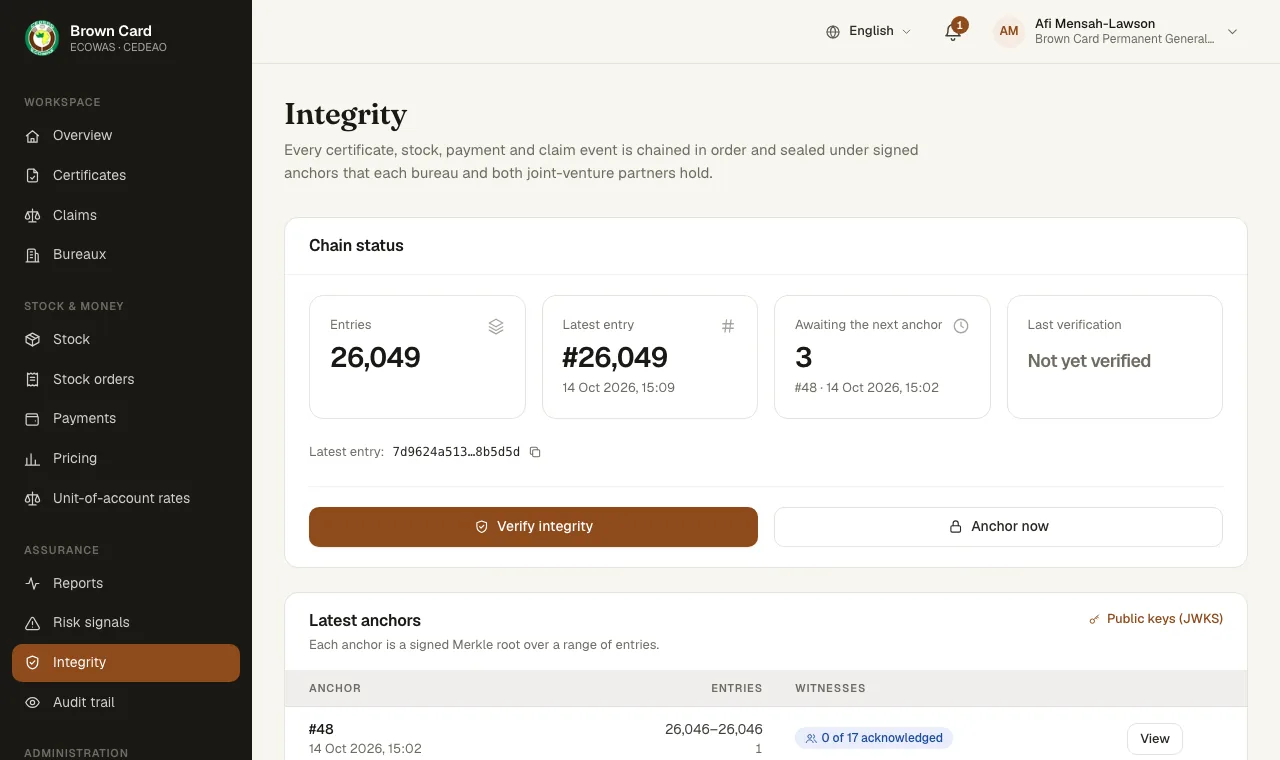
- Integrity: the state of the tamper-evident ledger, its anchors and the bureaux holding a copy of each; Look up a record by certificate, order or claim reference.
- Audit trail: who did what and when, filtered by record, action, person or organisation and dates.
31. Getting help
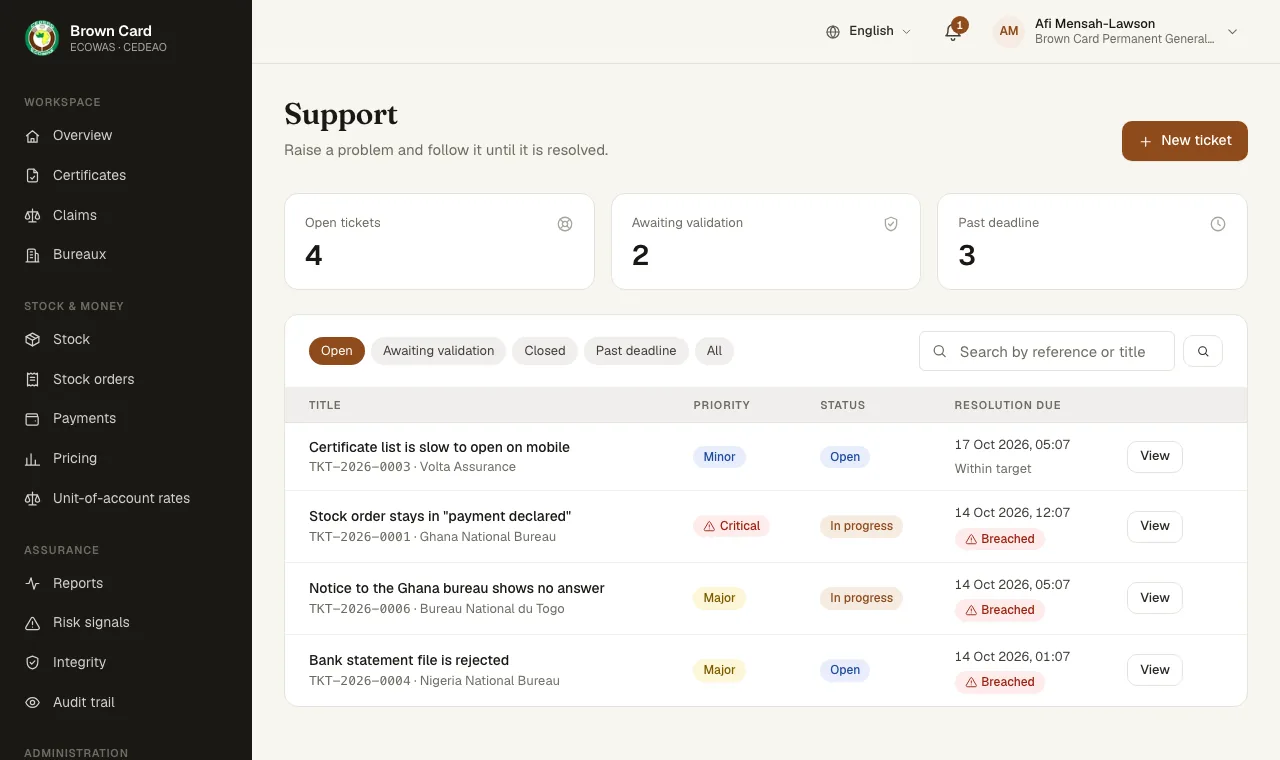
- Open Support and press New ticket.
- Give a Title, a Category, the Priority and what happened. The priority sets the response and resolution times.
- Follow the ticket on its page. The platform operator answers, works on it and marks it resolved; you can Reopen a resolved ticket.
The Secretariat administrator validates a resolved ticket with Validate and close.
Policyholders and the public get help from their insurer or from the national bureau of their country.